

Pipepro - Handyman & Plumber WordPress Theme
- Item Name : Pipepro - Handyman & Plumber WordPress Theme
- Created : 10 Jan 2025
- Version : 1.0.0
- Author : Oclata
- Support : etorisoft@gmail.com
Thank you so much for purchasing this WordPress theme. This documentation will help you to know about basic theme customization. If you need any kind of help or customer support, Feel free to contact us at etorisoft@gmail.com Our support team will communicate with you within 48 hours, It is an approximate time, sometimes it varies depending on the customer support waiting queue , business day, office hours etc.
Theme Requirements
To use this theme, make sure your hosting provider is running the following software:
- WordPress 5.0 or higher.
- PHP 5.6 or greater. WordPress officially suggests to use PHP 7.2.
- MySQL 5.6 or greater.
Recommended PHP Limits
Many issues that you may run into such as: white screen, demo content fails when importing, empty page content and other similar issues are all related to low PHP configuration limits. The solution is to increase the PHP limits. You can do this on your own, or contact your web host and ask them to increase those limits to a minimum as follows:
max_execution_time 180memory_limit 128Mpost_max_size 64Mupload_max_filesize 32Mmax_input_time = 60max_input_vars = 3000
Also consider upgrading your PHP version to the latest version, the newer the better.
WordPress Information
To install this theme you must have a working version of WordPress already installed. If you need help installing WordPress, follow the instructions in WordPress Codex or you can watch the. Below are ll the useful links for WordPress information.
- WordPress Codex – general info about WordPress and how to install on your server
- First Steps With WordPress – general information that covers a wide variety of topics
- FAQ New To WordPress – the most popular FAQ’s regarding WordPress
What's included
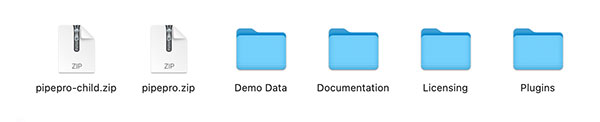
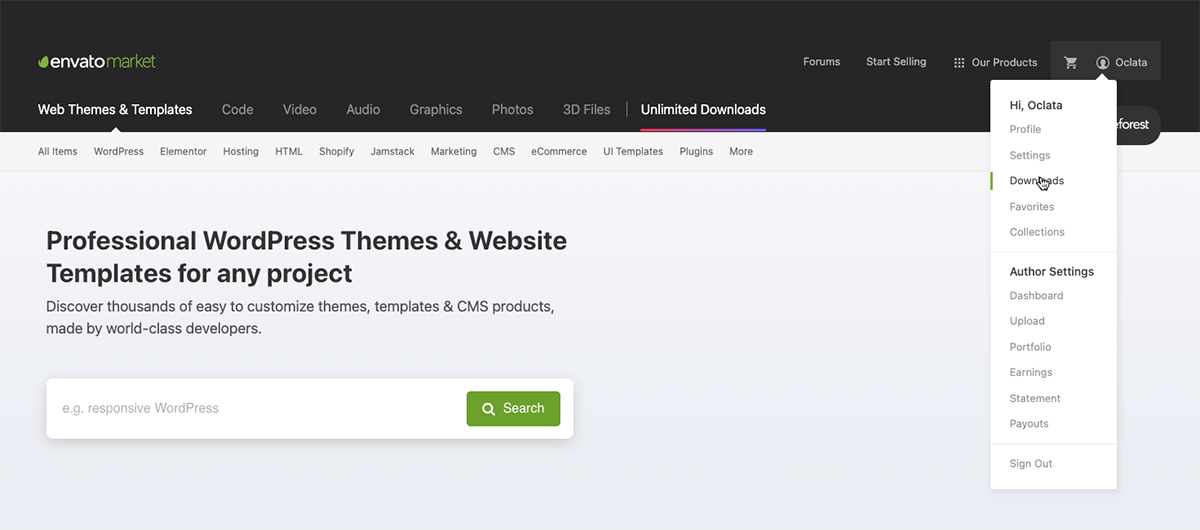
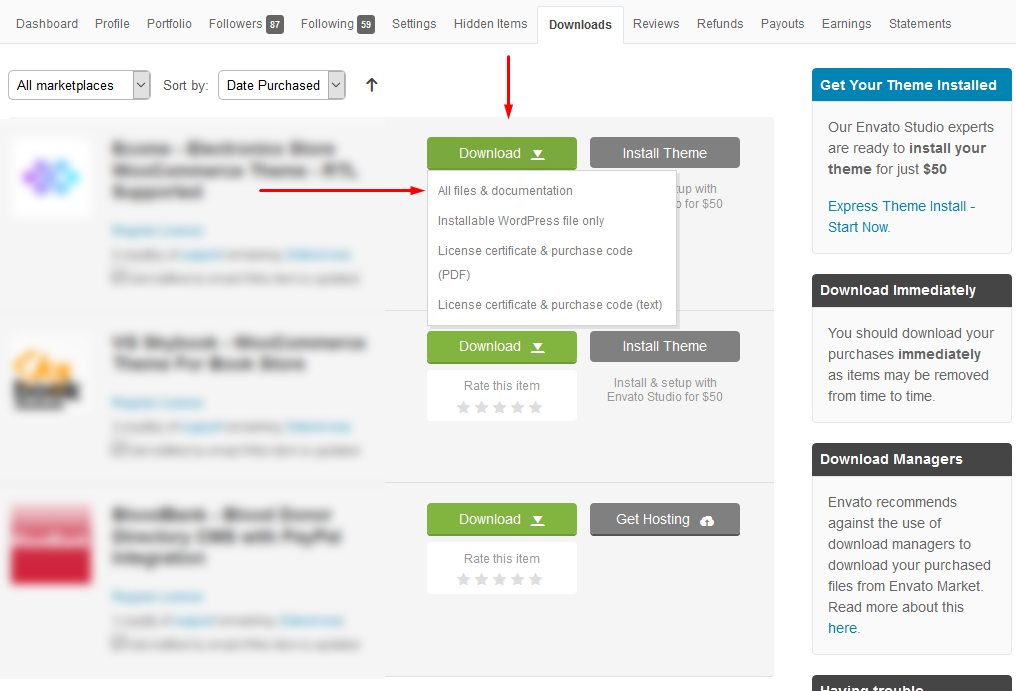
When you purchase this theme from Themeforest, you need to download the theme files from your Themeforest account. Navigate to your downloads tab on Themeforest and find this theme. Click the download button to see the two options. The Main Files contain everything, the Installable WordPress Theme is just the installable WordPress theme file. Below is a full list of everything that is included when you download the main files, along with a brief description of each item.
-
Installable WordPress file only. You can upload this file when you install the theme.
-
All files and documentation (full zip folder). You will need to extract and locate the installable WordPress file to upload when you install the theme.
Theme Installation
It’s easy to install this theme. Just follow bellow steps, It will not take too much of your time.
-
Download the theme zip file from your
Envato account from
ThemeForest.
- **All files & documentation **(full zip folder). You will need to
extract and locate the
installable WordPress file to upload when installing theme
- Login to your WordPress Dashboard (Ex: http://yourwebsite.com/wp-admin).
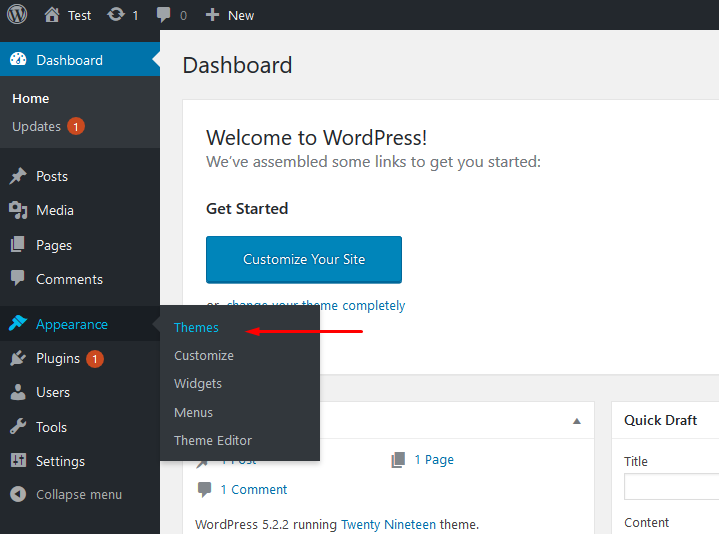
- Navigate to Appearance > Themes.
-
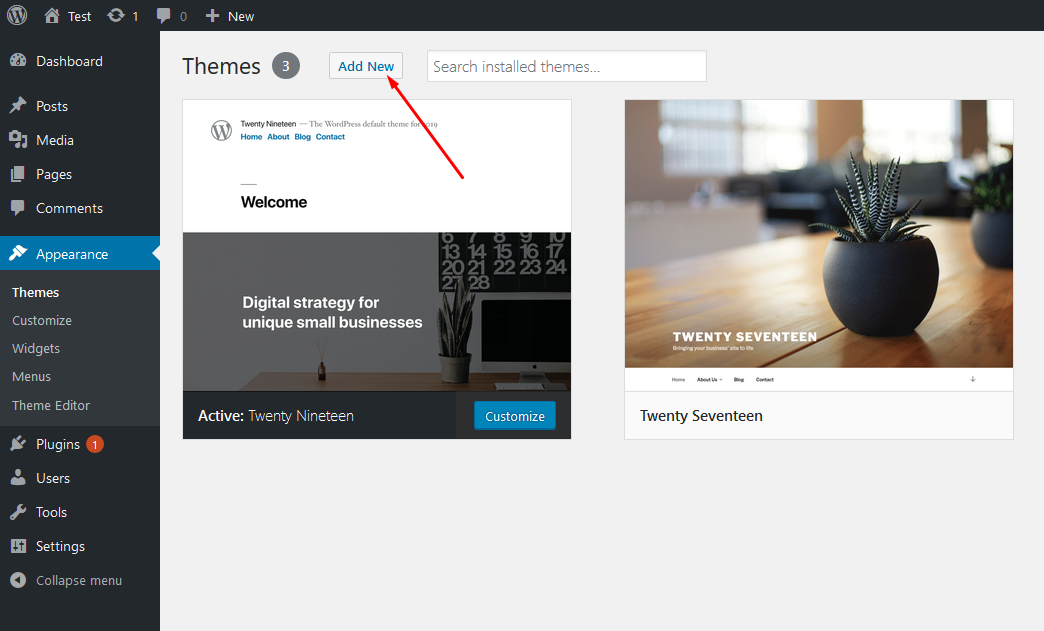
Click on Add New and then Click on
Upload Theme .
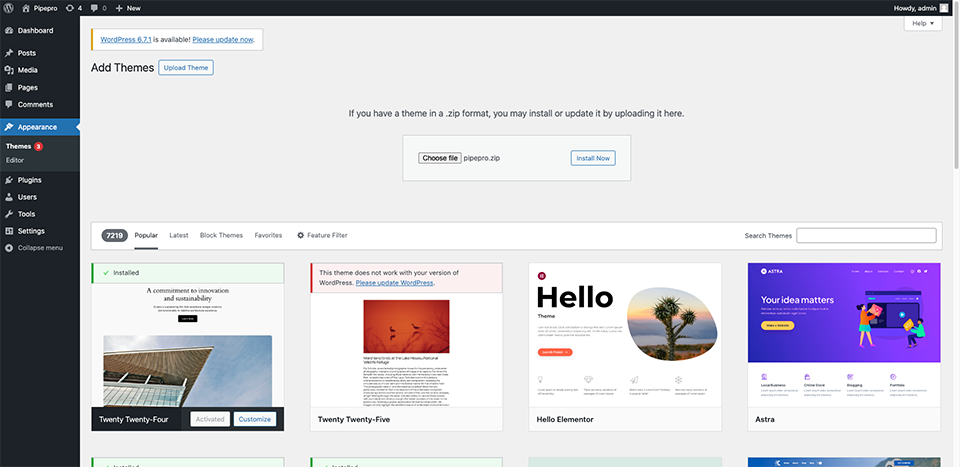
- Click Add New, then click Upload Theme >
Choose File
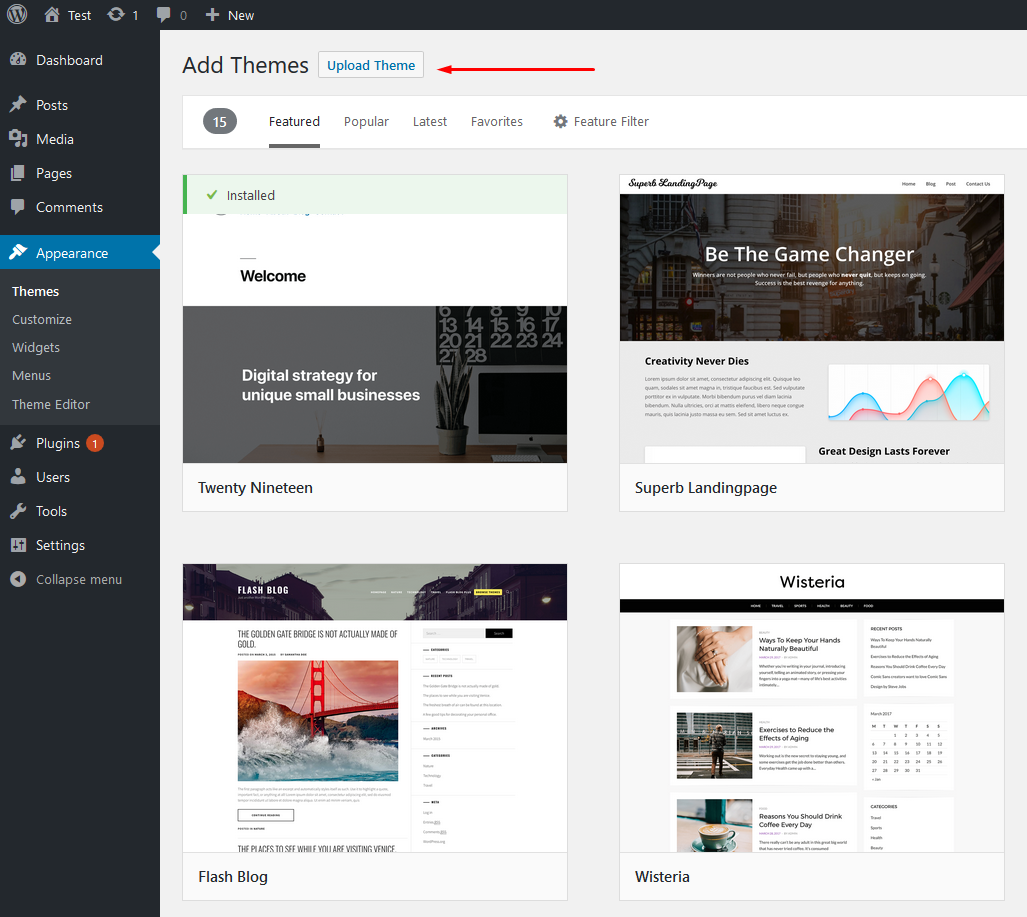
- Navigate to the .zip file on your computer, then click
Install
Now
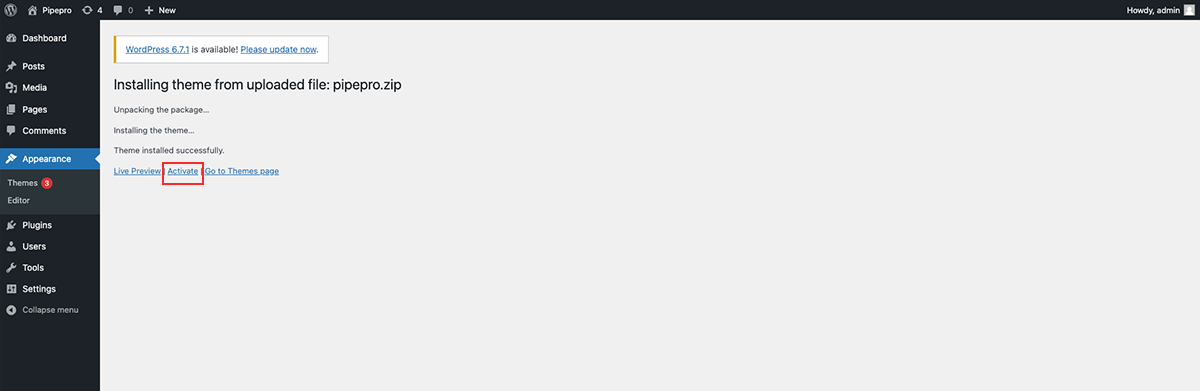
- When the installation complete, click Activate. You will be
redirected to Themes page with Avtrix activated.
- Done.
Install theme via FTP
To manually upload your new WordPress theme, login with your credentials to your website and locate the wp-content folder in your WordPress install files. Upload the un-zipped 'theme' folder into the: wp-content/themes folder.
Once uploaded, activate the theme by heading to the “Themes” menu in the WordPress Dashboard. Locate the Avtrix theme and hit “Activate”.
The theme files will be stored on your server in the
wp-content/themes/ location.
Note: When uploading your theme with the installer, please ensure you are uploading the theme .zip file, not the entire package you downloaded. In this case, you will be uploading .zip folder
Plugins Installation
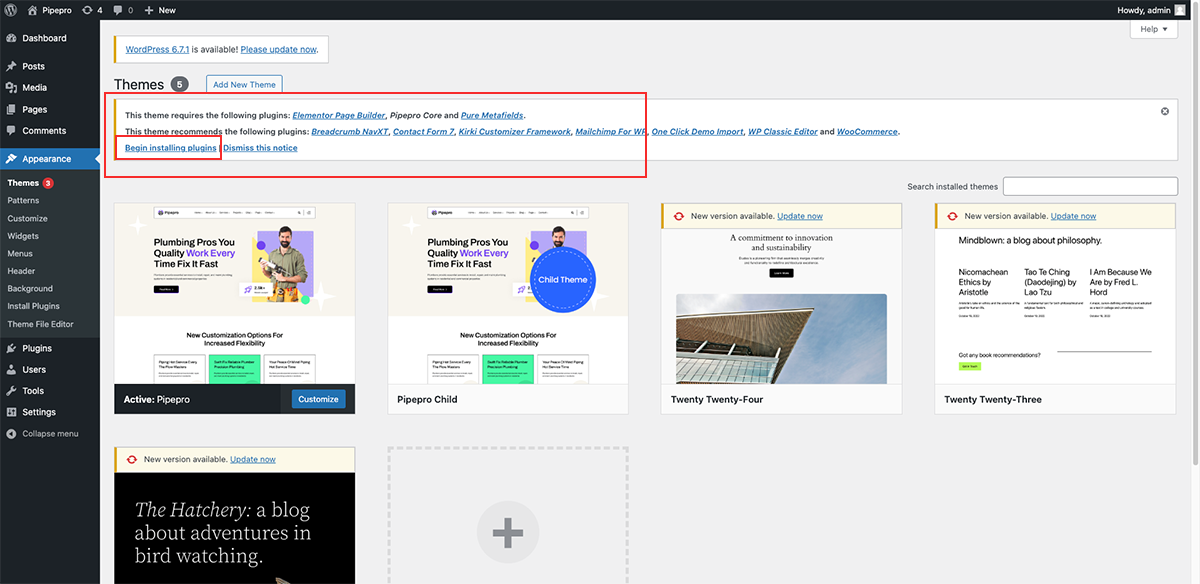
You must have to install all the plugins to get all features otherwise this theme will not work properly.
Step: 1
Step: 2
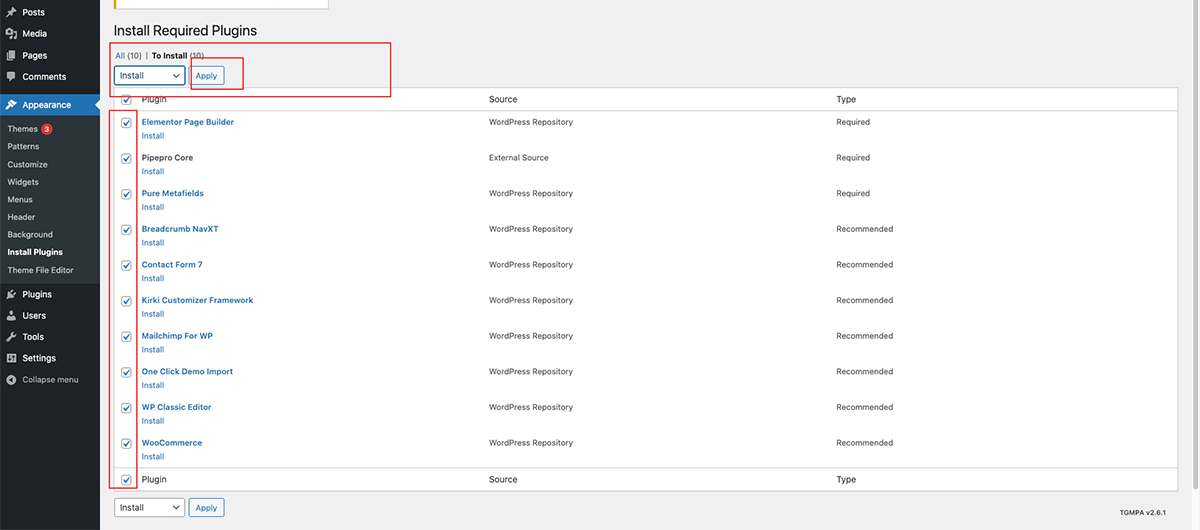
Step: 3
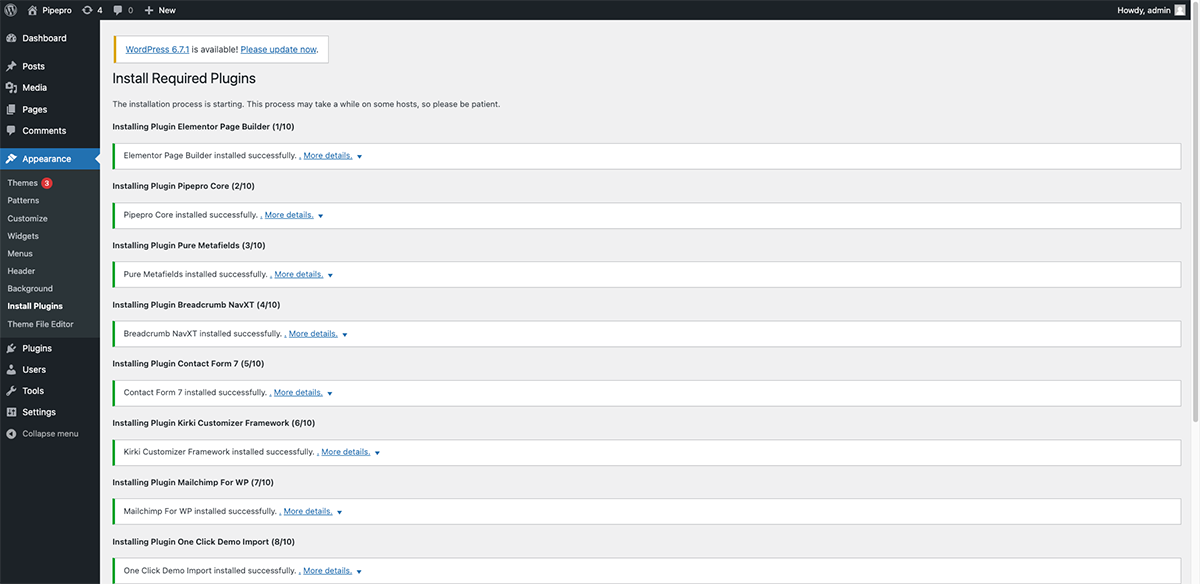
Step: 4
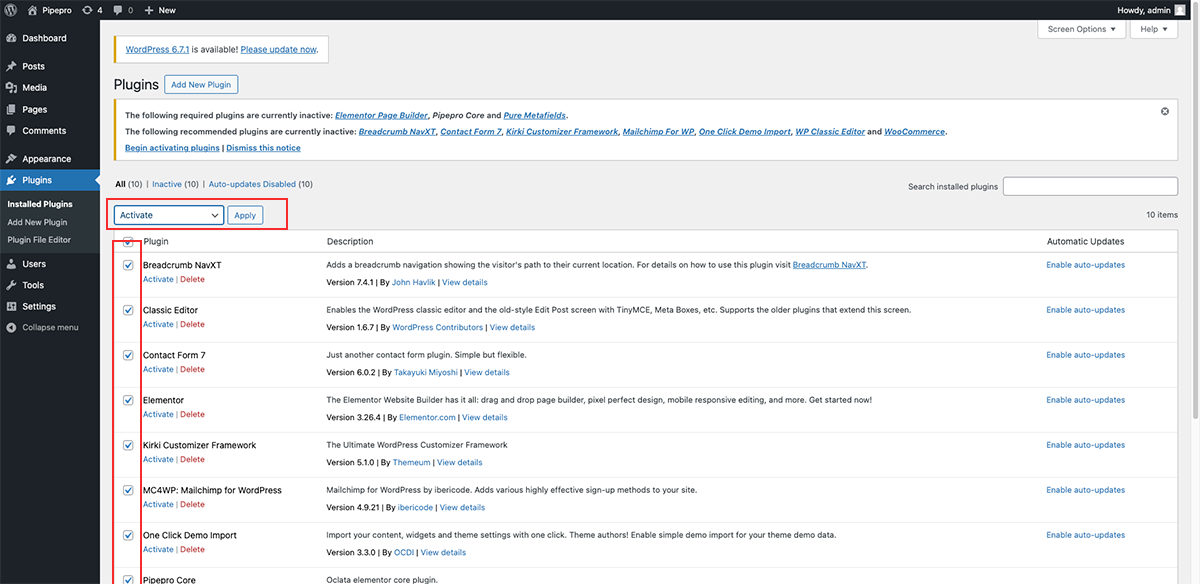
Step: 5
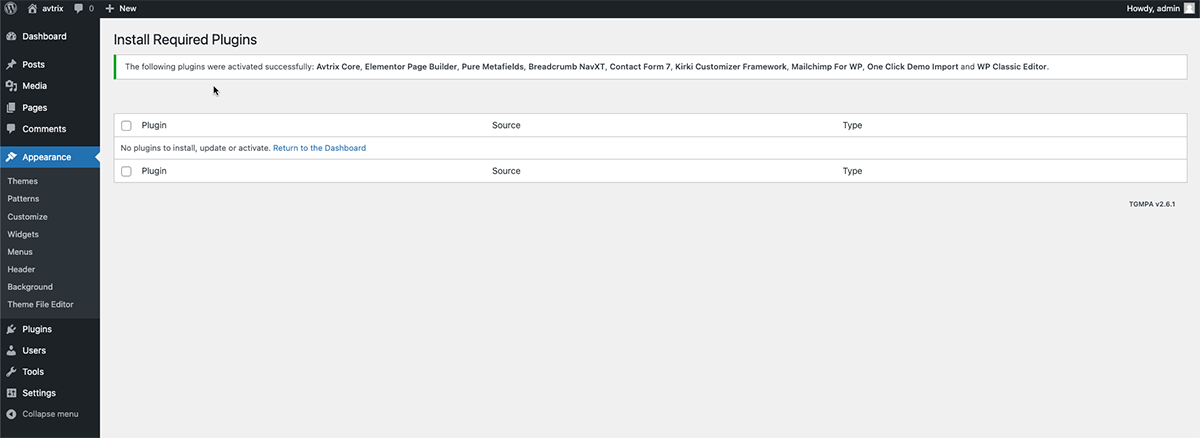
Demo Installation
Before starting to import demo data, We will encourage you to turn on all the footer
switches from Theme Options & Please make sure that you're using stable and high speed
internet connection.
Sometimes some demo data will not be imported due to lack of a
stable internet connection. At that time you will see step 4 type of
message. To start
import
demo data please follow the below steps.
Step: 1
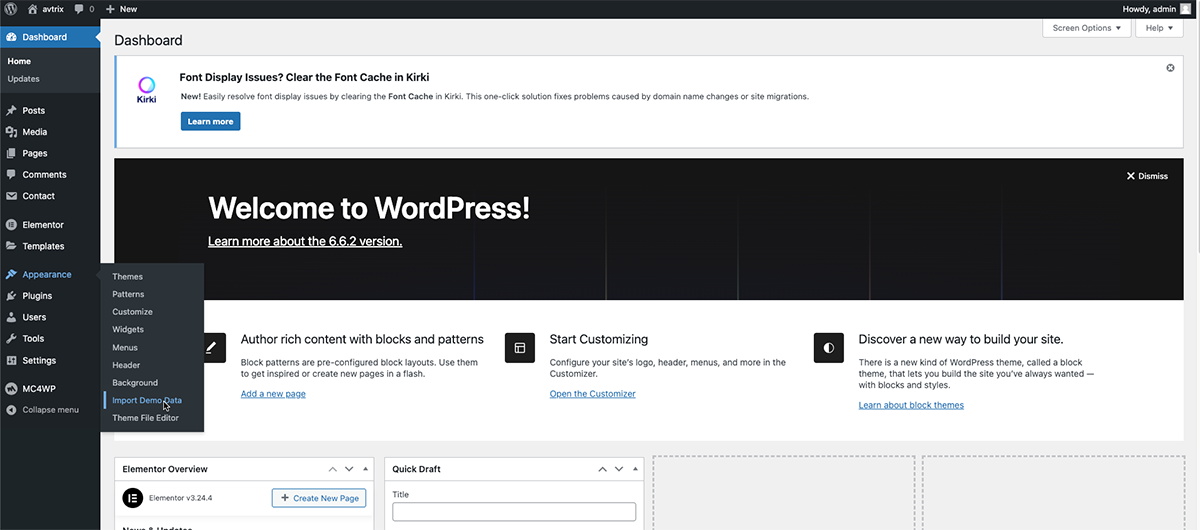
Step: 2
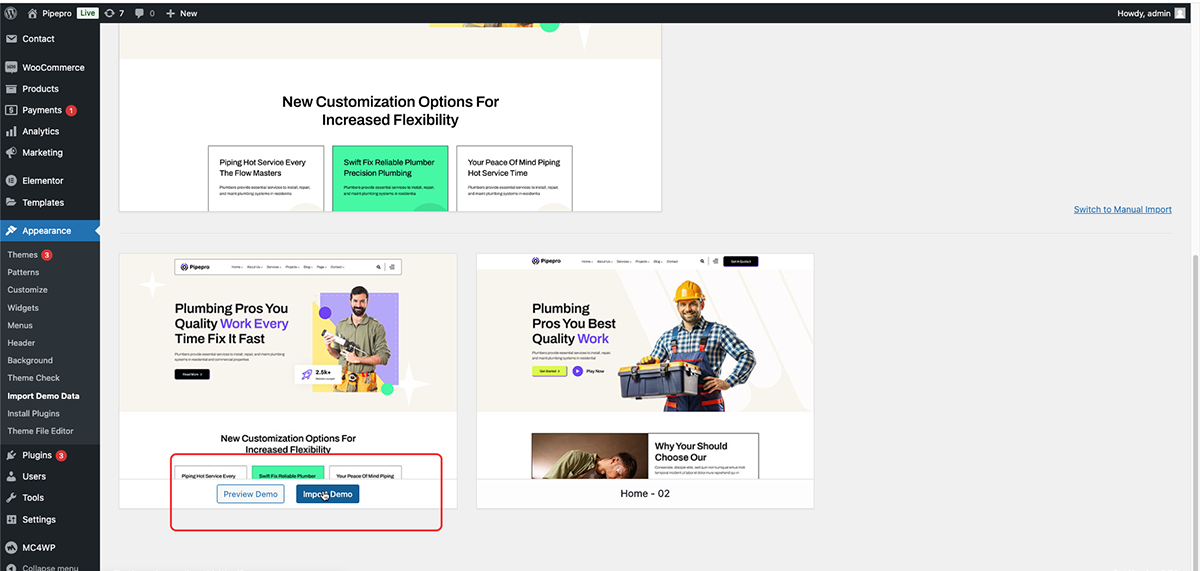
Step: 3
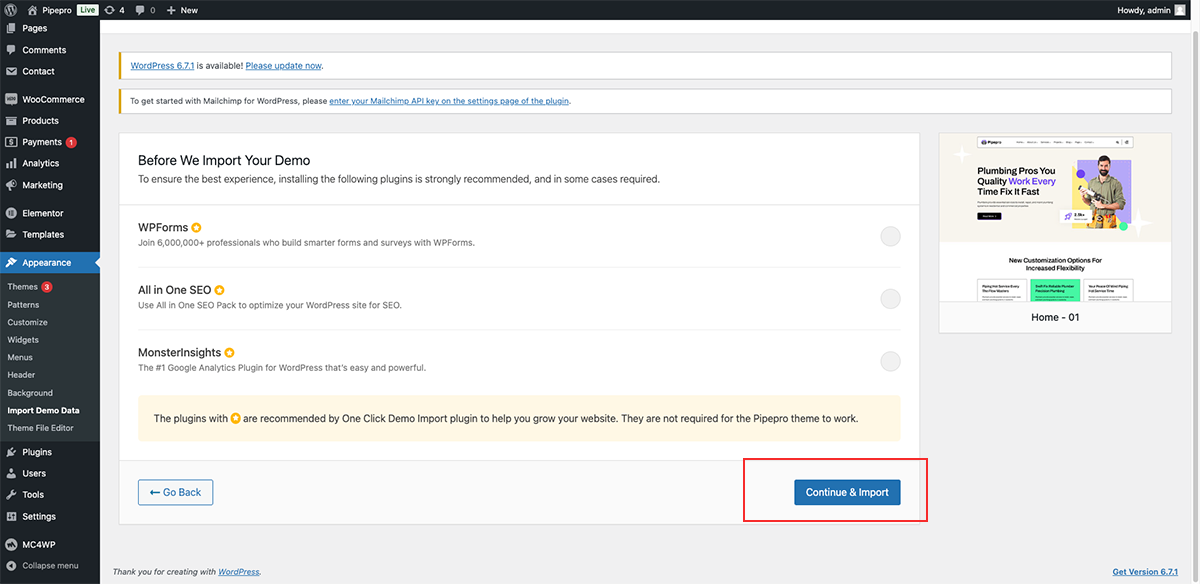
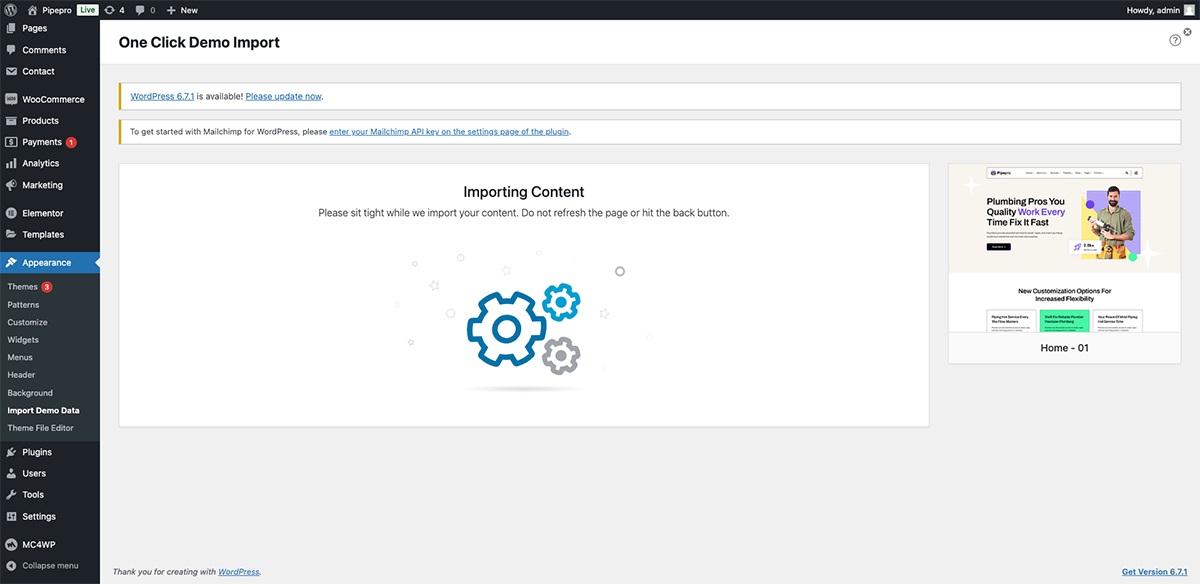
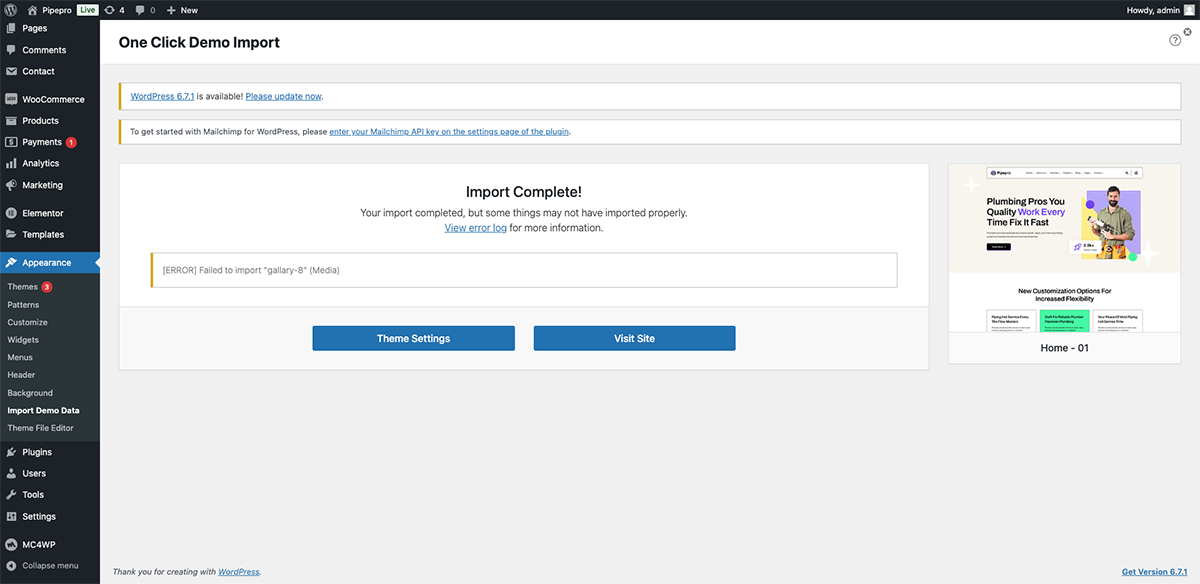
Step: 4 ( Note: Unstable internet connection can cause this type of problem during demo data import session. )
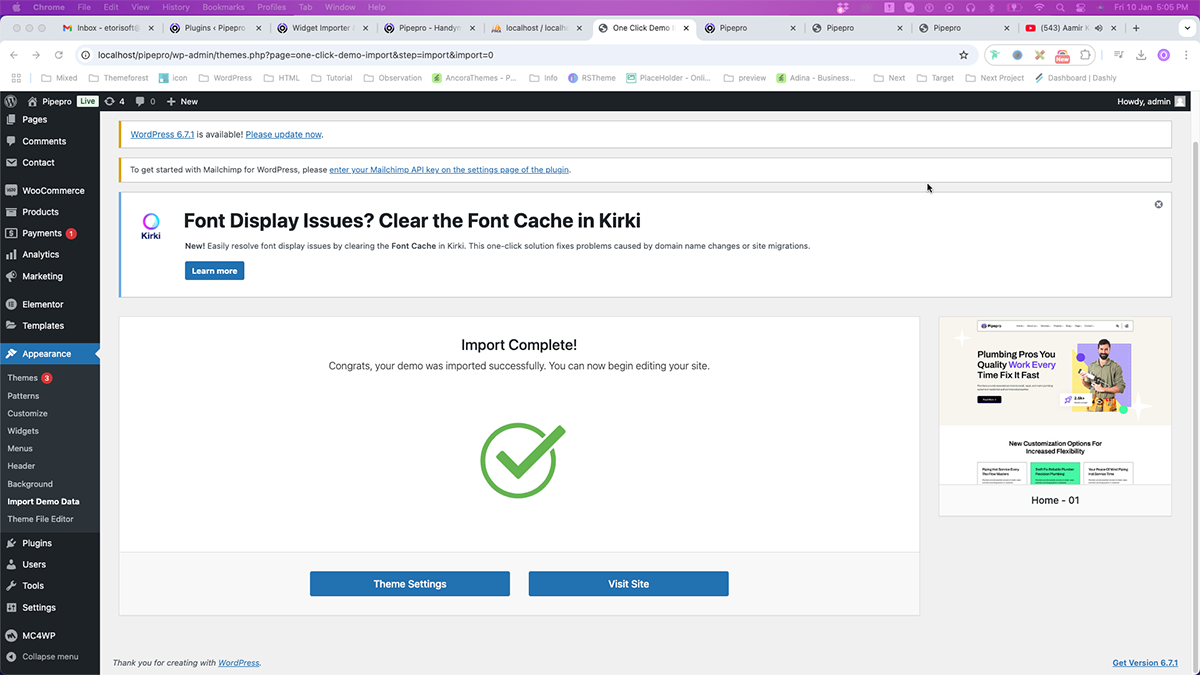
Step: 5 ( Demo data import successfully...! )
Step: 6 ( Optional )
To Setup your Homepage & Posts page goto Setting > Reading > Save Changes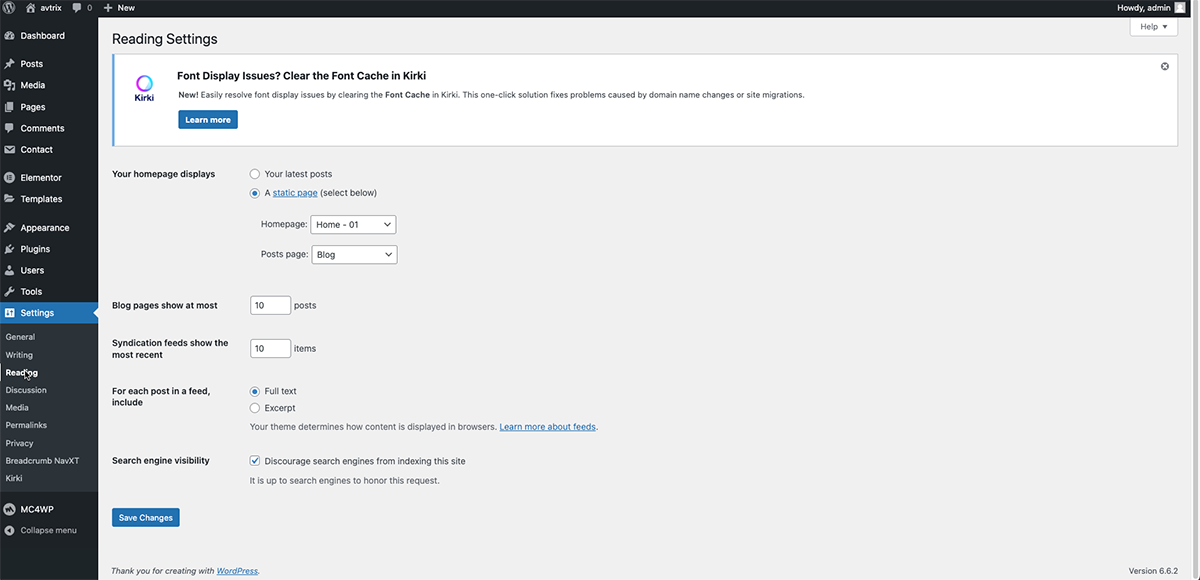
Free Support System
All of Oclata’s items
come with
6 months of included support and free lifetime updates for your Theme.
Once the 6 months of included support is up, you have the opportunity to extend support
coverage up to 6
or 12 months further.
If you choose to not extend your support, you will still be able to submit bug reports
via
email or item
comments and still have access to our online documentation knowledge base and video
tutorials.
We have an advanced, secure ticket system to handle your requests. Support is limited to questions regarding the theme’s features or issues that are related the theme. We are not able to provide support for code customizations or third-party plugins. If you need help with anything other than minor customization of your theme, we suggest enlisting the help of a developer.
Our Support Mail
All of our items come with free support, and we have a dedicated mail: etorisoft@gmail.com to handle your requests. Support is limited to questions regarding the theme’s features or problems with the theme. We are not able to provide support for code customizations or third-party plugins. If you need help with anything other than minor customizations of your theme then you should enlist the help of a developer.
Item Support Includes
- Answering questions about how to use the item
- Answering technical questions about the item
- Help with defects in the item
- Item updates to ensure ongoing compatibility and to resolve security vulnerabilities
Not Included in Item Support
- Theme customization and requests that require or involve custom coding
- Installation of the item
- Hosting, server environment, or software
- Support for compatibility with 3rd party plug-ins
- Support for out-dated or modified themes
For more information on Item Support Policy please refer to the original document..
Create New Page
Create a New Page
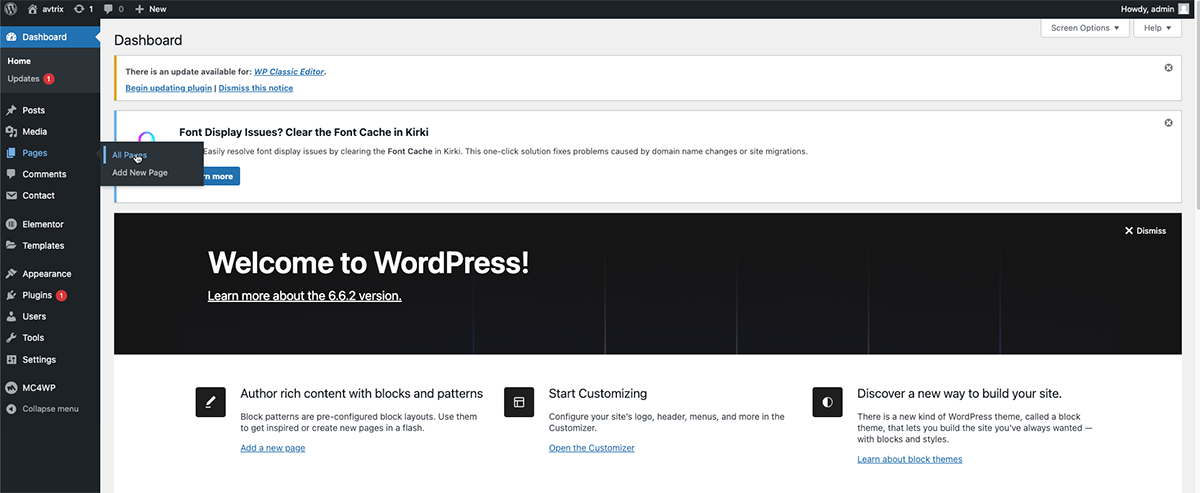
Step 1: Goto Pages in your Admin Dashboard and click Add New Page option.
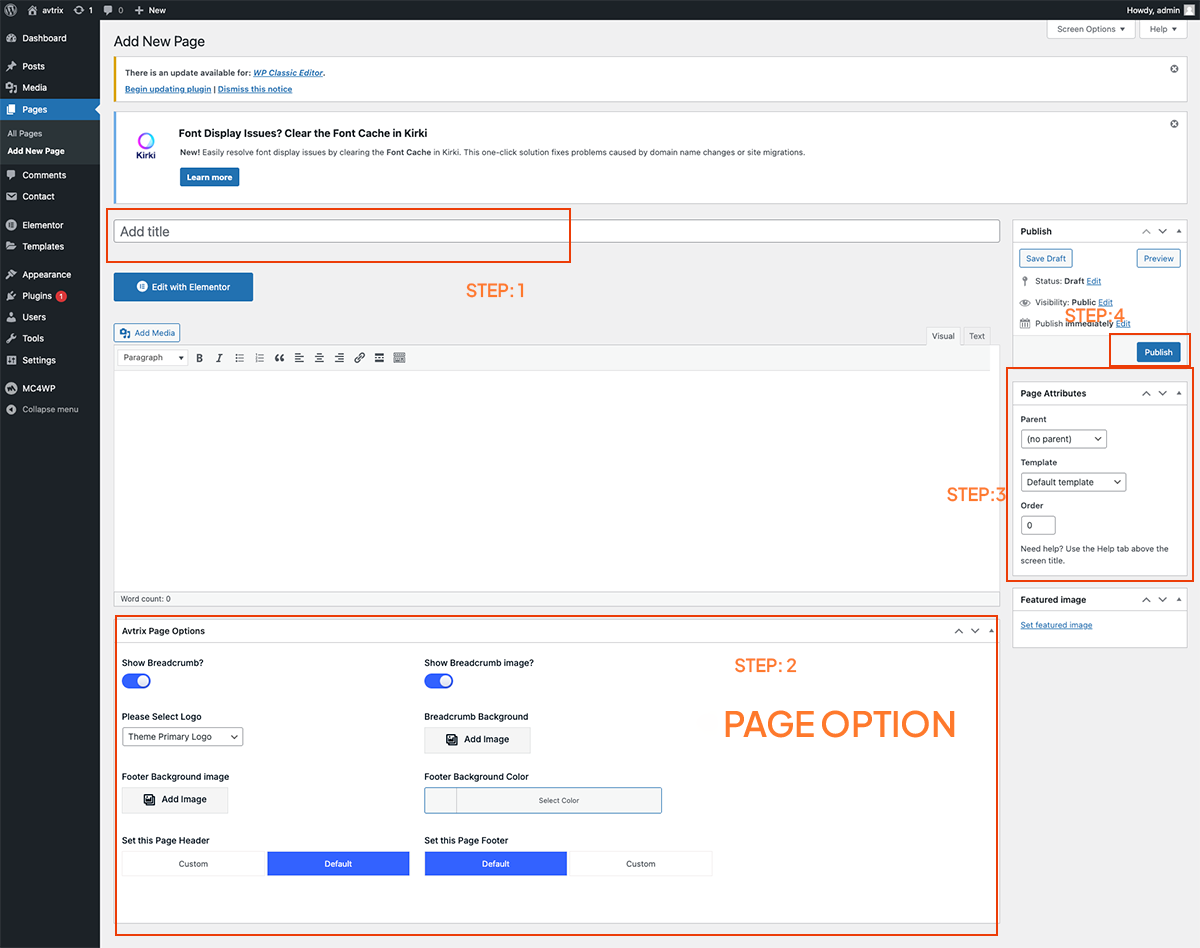
Step 2: Setup your page as you like & then hit the publish button.
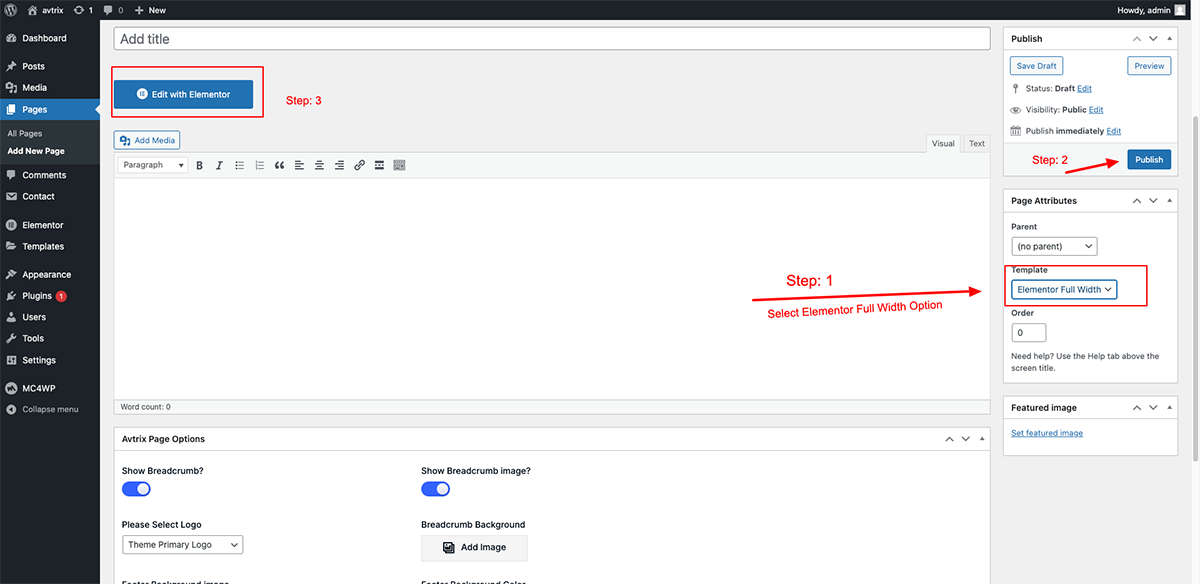
Use Elementor Page Builder to Build Page
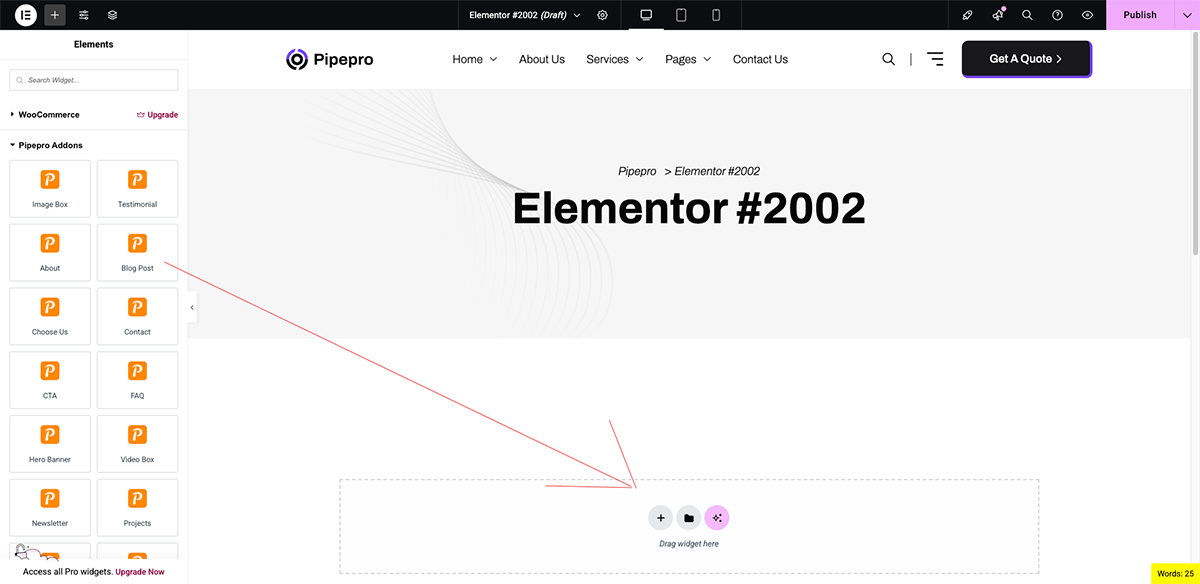
Step 1: Choose Edit With Elementor to edit your page.
Step 2: Choose Add Element to start adding our premade elements to your new page.
How to Change Page Title
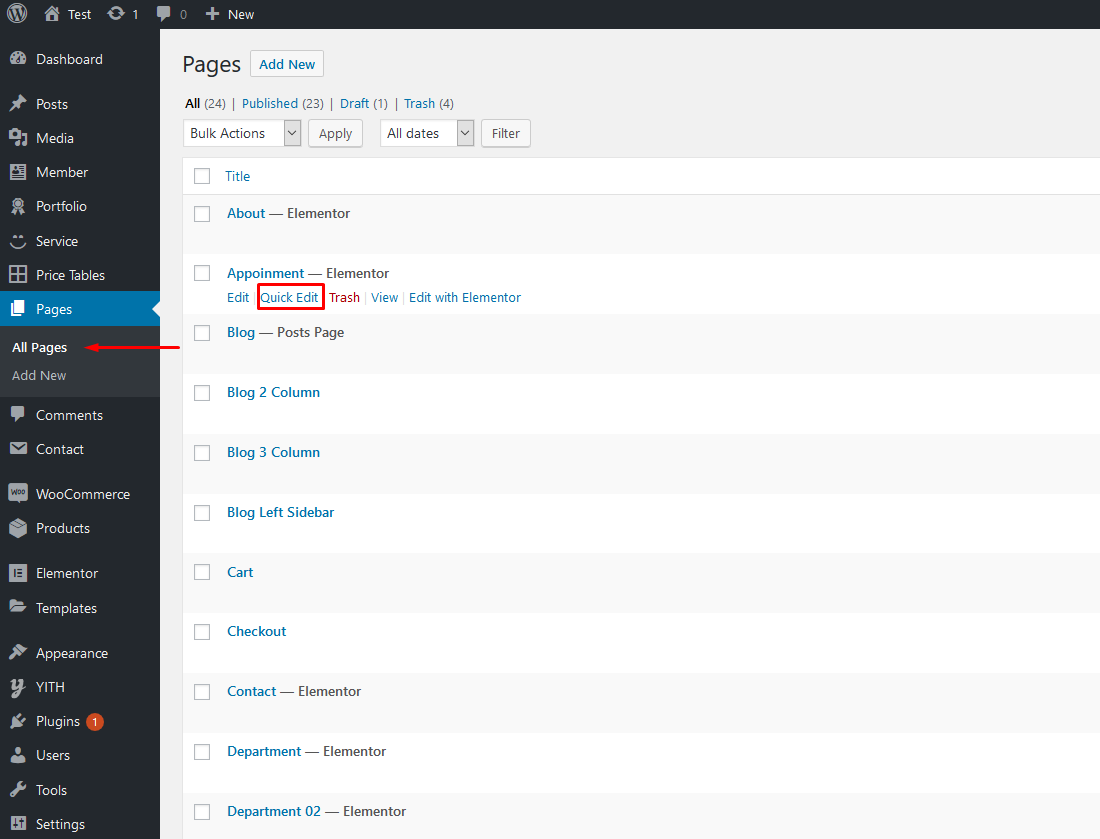
Step 1: Go to Pages > All Pages. Then point at the page you want to edit. You will see the Quick Edit option.
Step 2: Edit the title as you want. Delete the current slug. Then hit Update. It will automatically generate new slug for your page.
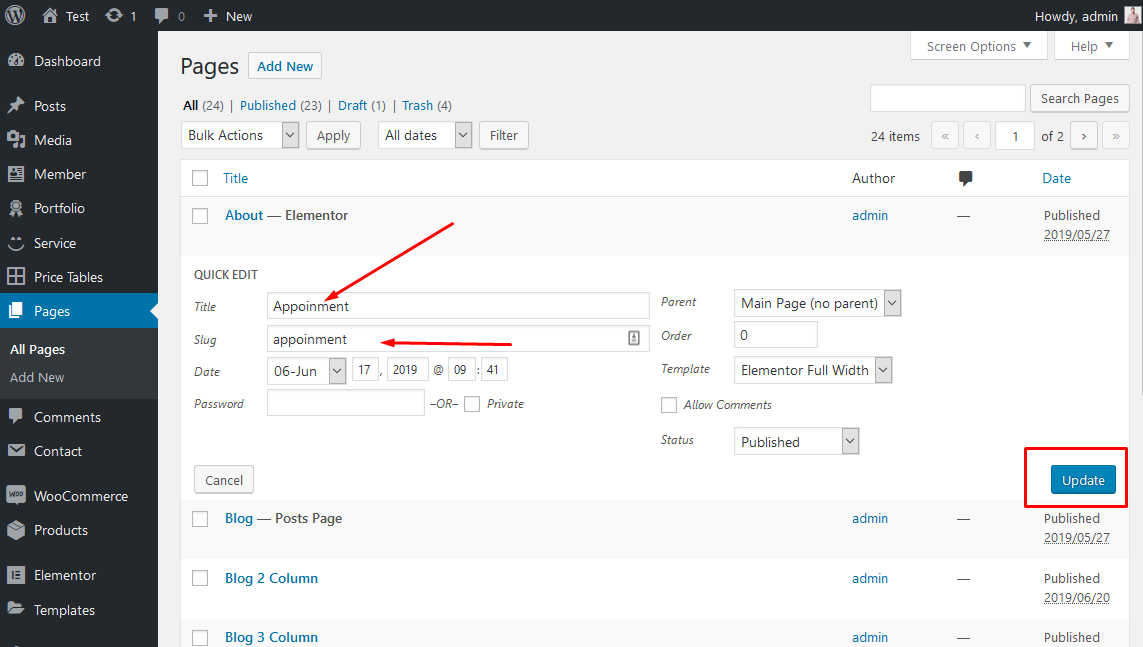
You can also edit some other options such as parent, template, status... If you want to edit more options, hit Edit instead of Quick Edit.
Site Logo
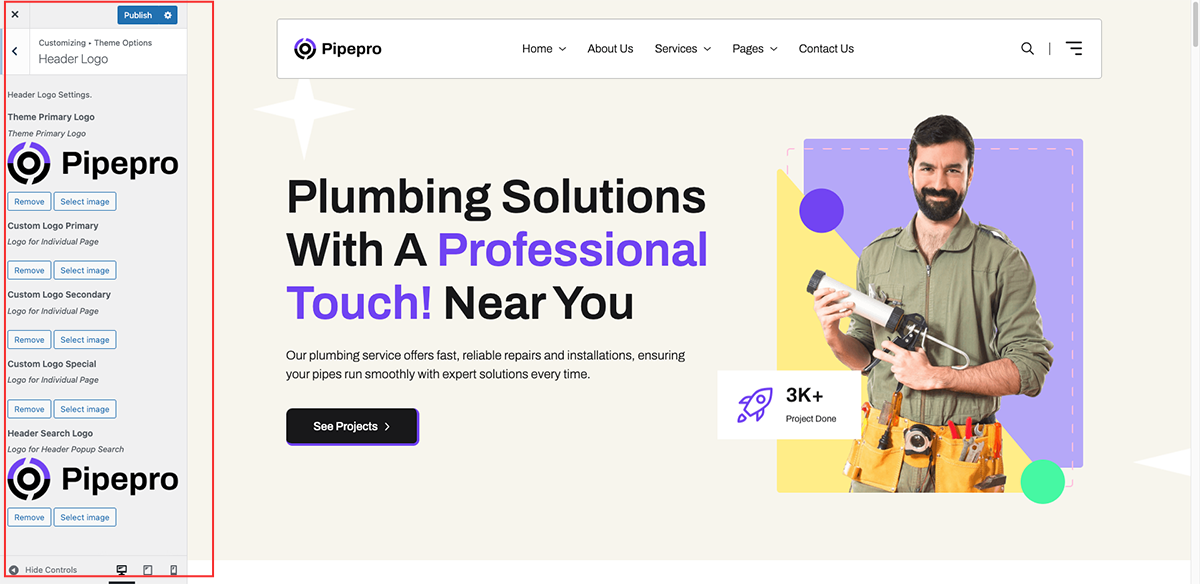
To change default site logo follow the bellow process
Appearance →
Customize → Theme Options → Header
Logo
Retina Logos
To make your logos look crisp on Retina devices, simply upload a Retina logo to the corresponding upload fields.
Retina versions are twice as large as the original ones. For example, if your logo is
100px
							x 50px
, the Retina version must be 200px x 100px.
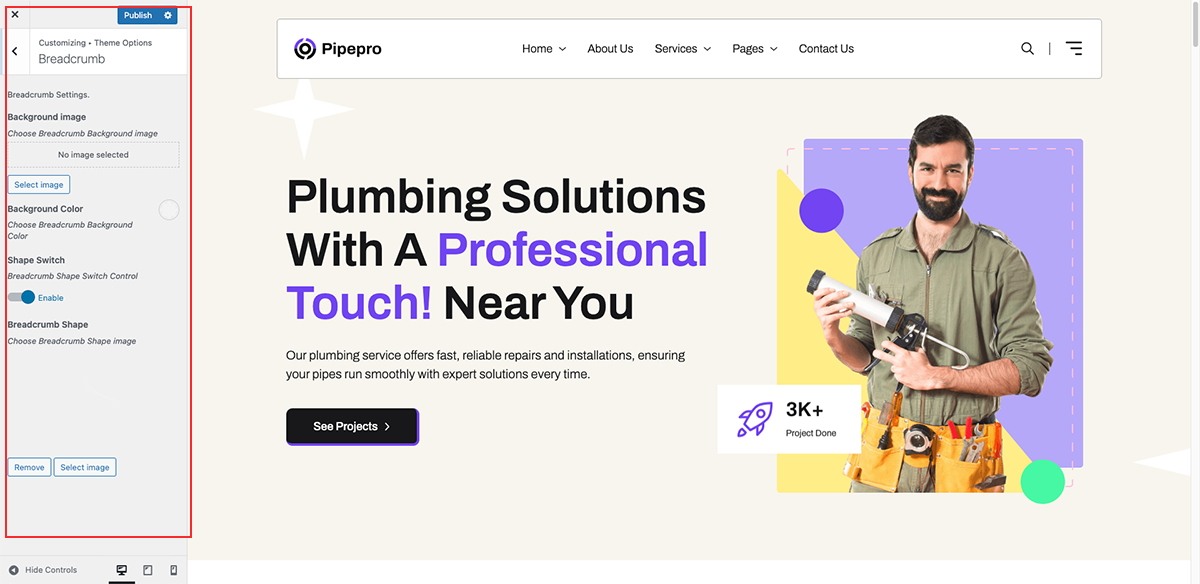
Breadcrumb
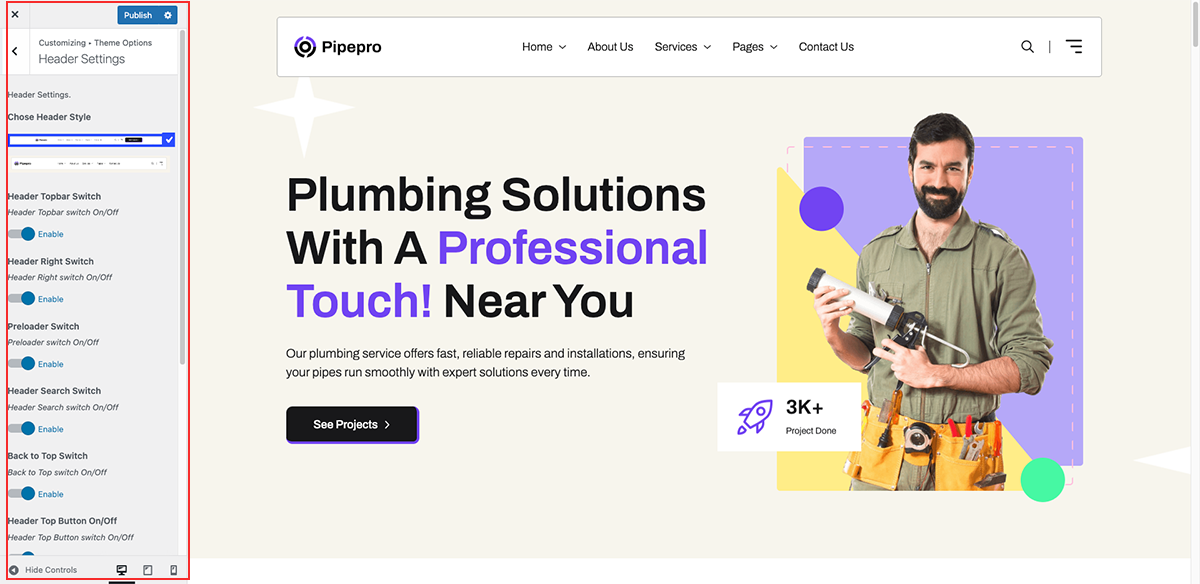
Header & Footer
There’re Topbar Switter on/off avalible. All of them can be configured in
Appearance →
Customize → Theme Options → Header
Settings
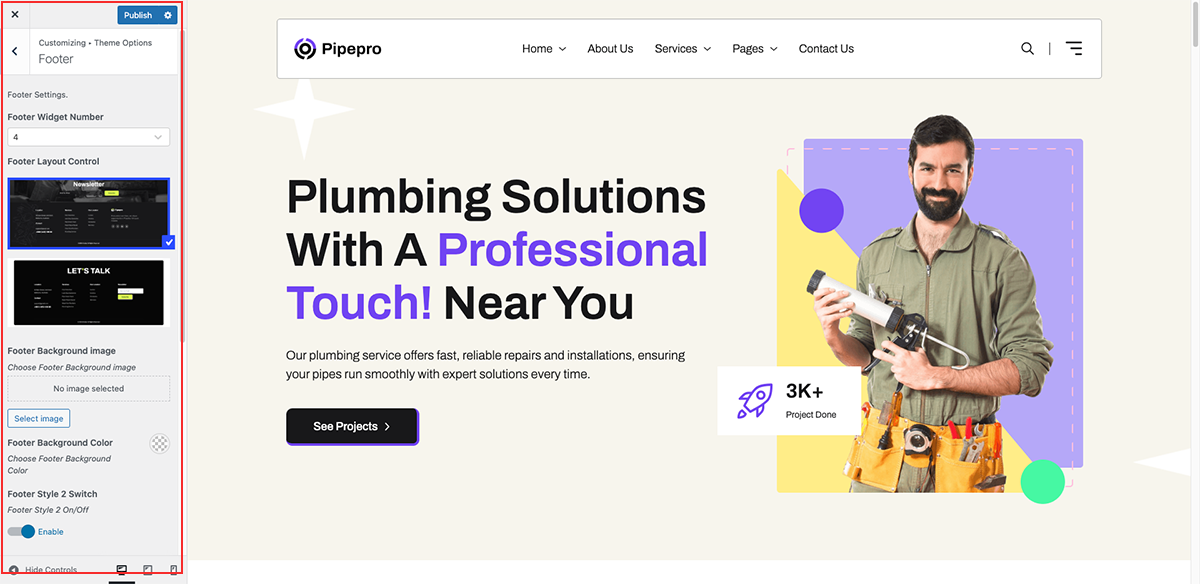
Footer
There’re footer copyright text , social link, footer on/off , footer logo
will
be configure. All of them can be
configured in
Appearance →
Customize → Theme Options →
Footer
How to Create a Menu
Setting up Navigation Menus works normally as it does for any WordPress theme. If you’re new to WordPress, you can learn more about menus in the WordPress Codex article.
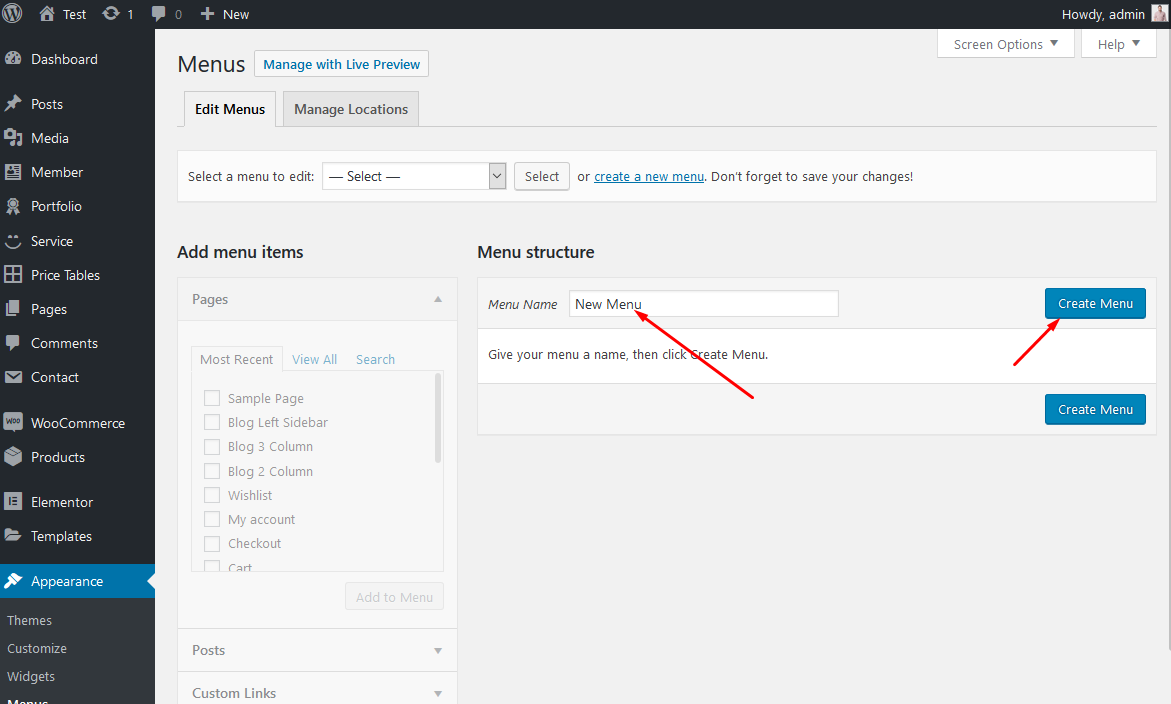
- Go to Appearance → Menus in your admin sidebar and
click Create a new menu option..
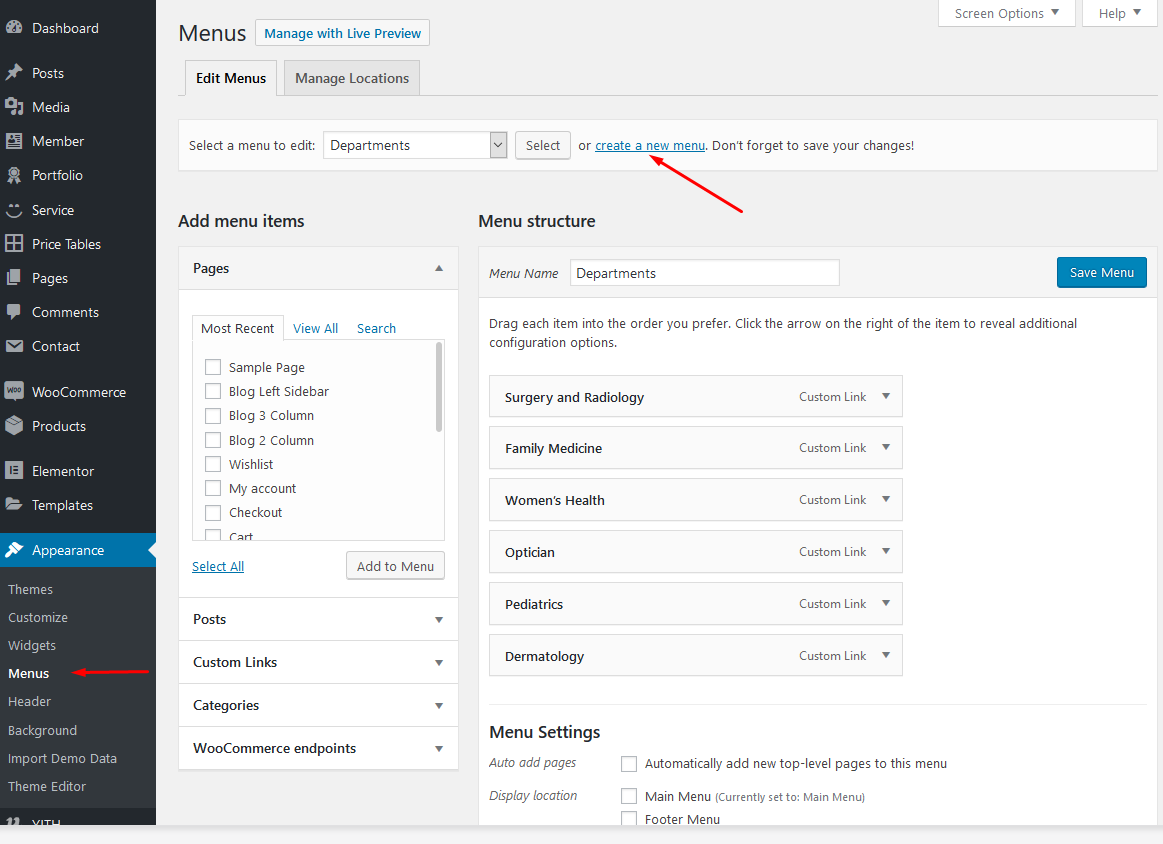
- Select Create a new menu at the top of the page
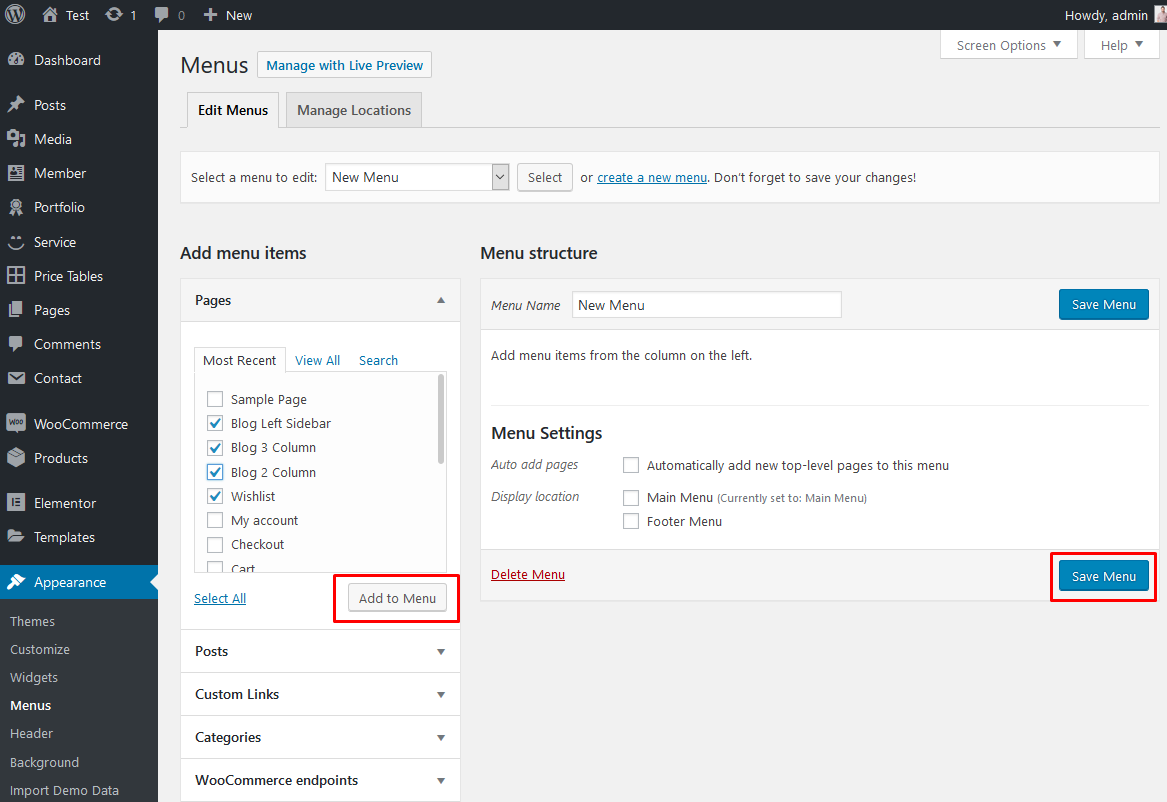
- Choose menu items you want to add from the left and hit Add to Menu. Then hit
Save
Menu
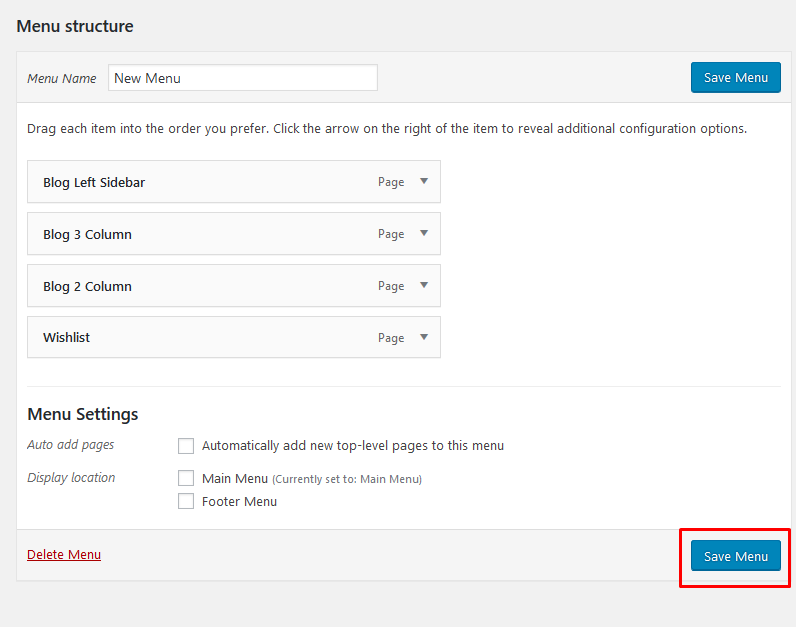
- Your new menu has been created:
- Using the Custom Links and Pages boxes at the left, add items to the menu and drag and drop to arrange them.
- If you would like to use this menu in the primary navigation of the theme, scroll
down
to the Menu
Settings area, enable the checkbox next to the Main
Menu
menu locations.
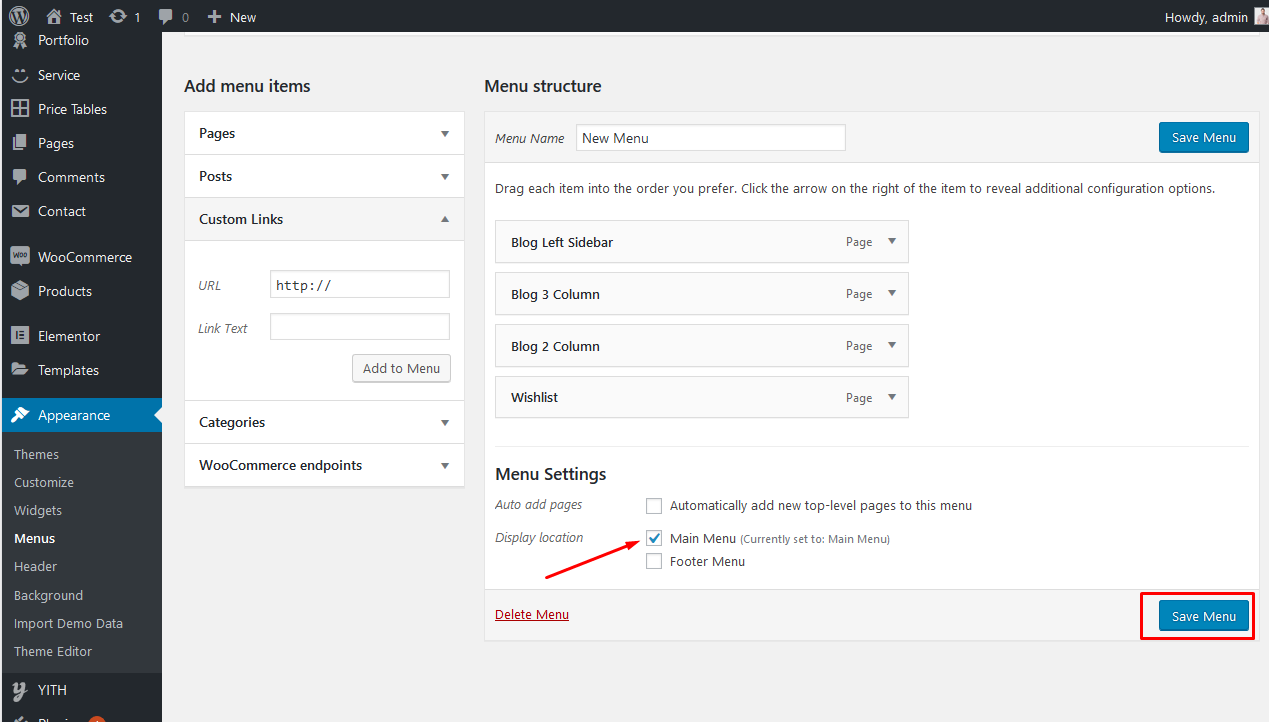
- Click Save Menu and that is all.
Contact Form Setup
Overflow comes with integrated support for the Contact Form 7 plugin:
Contact Page Form
<div class="field">[text* your-name placeholder "Enter Name"][email* your-email placeholder "Email Address"]</div>
[text* your-subject placeholder "Name Of Subject"]
[textarea your-message placeholder "Desciption"]
[submit "Send"]
How to Create a New Post
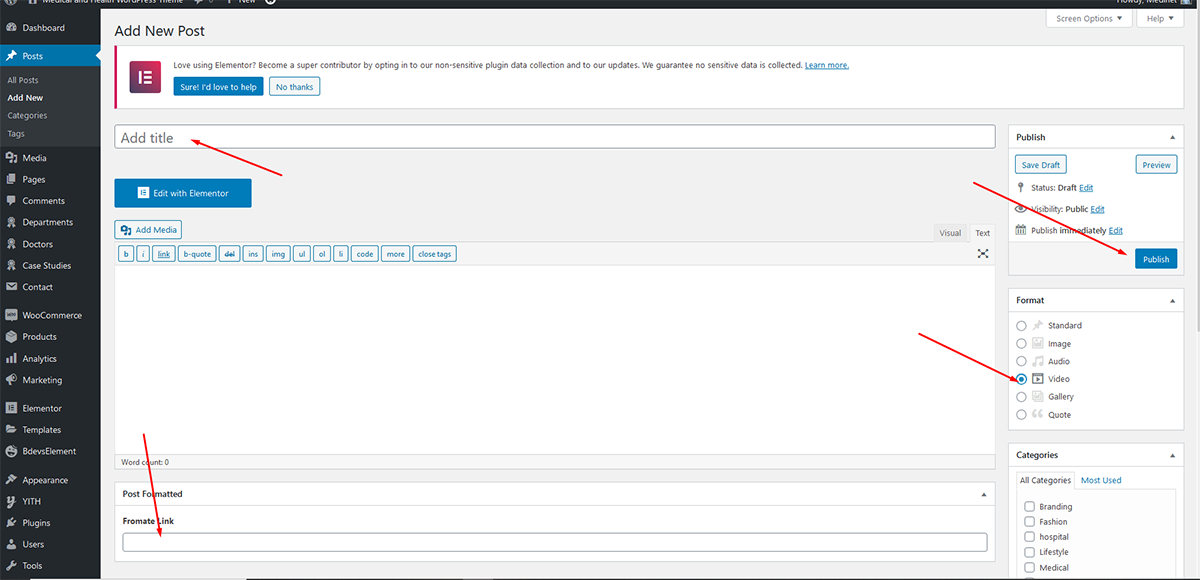
Step 1: Navigate to Posts > Add New in your WordPress admin sidebar.
Step 2: Create a title, and insert your post content in the editing field.
Step 3: For a video/audio post, just simply paste the video/audio URL into the Embed Code field.
Step 4: Add Categories from the right side. Categories is meta information you create for the post. Each category is a meta link that your viewer can click to view similar type of posts. To assign it to the post, check the box next to the Category name. You can also access and edit Categories from the Post sidebar item in your WordPress admin sidebar.
Step 5: Add Tags from the right side. Tags is meta information you create for the post. Each tag is a link that your viewer can click to view similar type of posts. Type the name of the tag in the field, separate multiple tags with commas. You can also access and edit Tags from the Post sidebar item in your WordPress admin sidebar.
Step 6: For a single image, click the first Featured Image Box, select an image and click the Set Featured Image button.
Step 7: You can also customize Page Title & Sidebar Options in Settings.
Step 8: Once you are finished, click Publish to save the post.
Here is the screenshot that shows the various areas of the blog post page:
How to Create a Category
Step 1: Post >> Categories
Step 2: Name the category and fill to other section below.
Step 3: Hit Add New Category. Your new Category will aprear in the table of all category immediately.
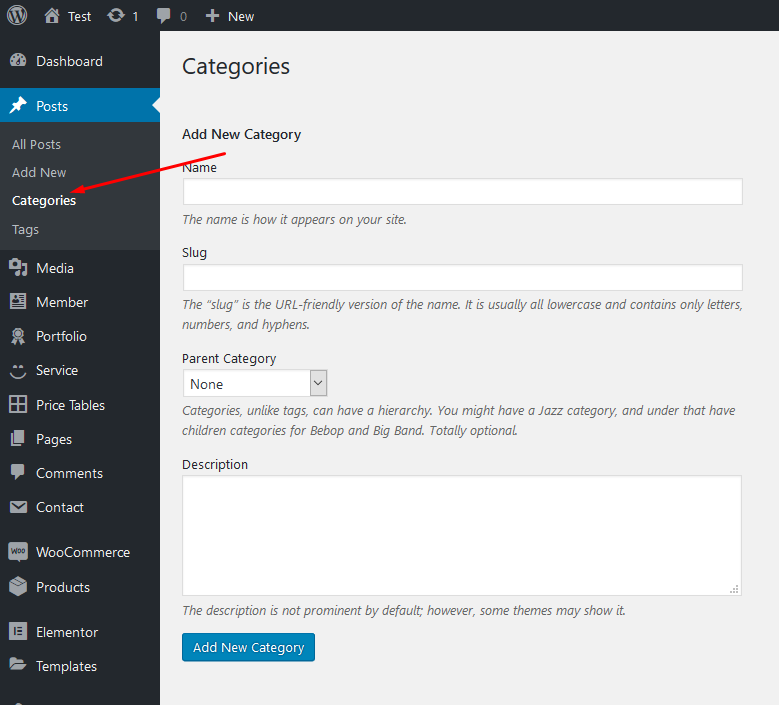
Similar to Category, you can create a new Tag in the same way.
How to Add Widget in Sidebar
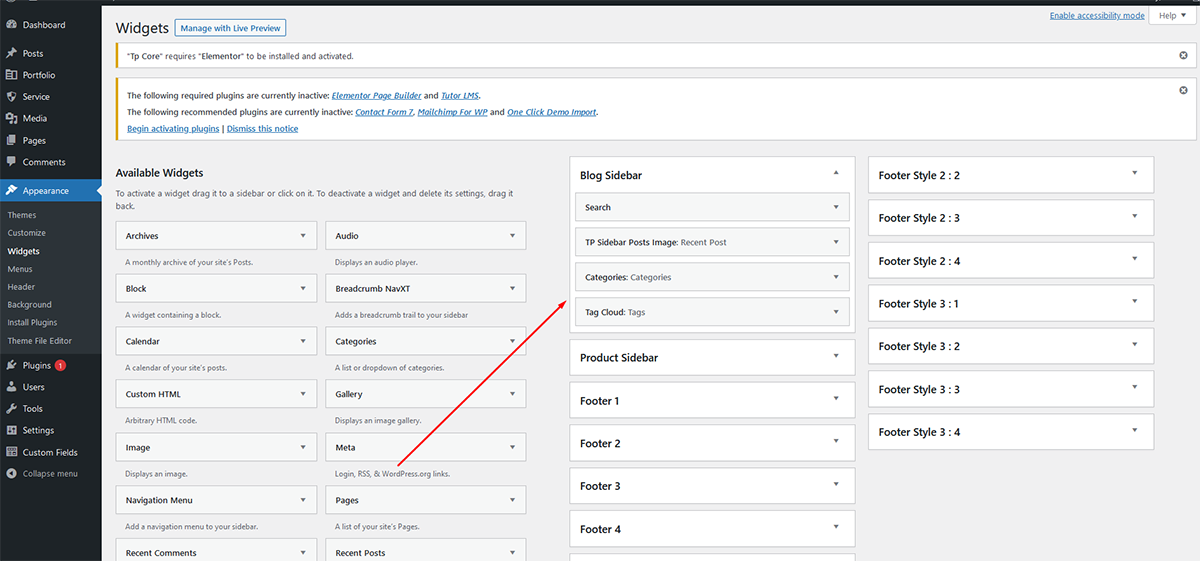
Step 1: Appearance > Widgets. You can see all of the Sidebar here.
Step 2:Choose the Widgets you want and drag it to the Sidebar you want or click on it to choose the Sidebar.
In the case you want to delete its settings, drag it back.
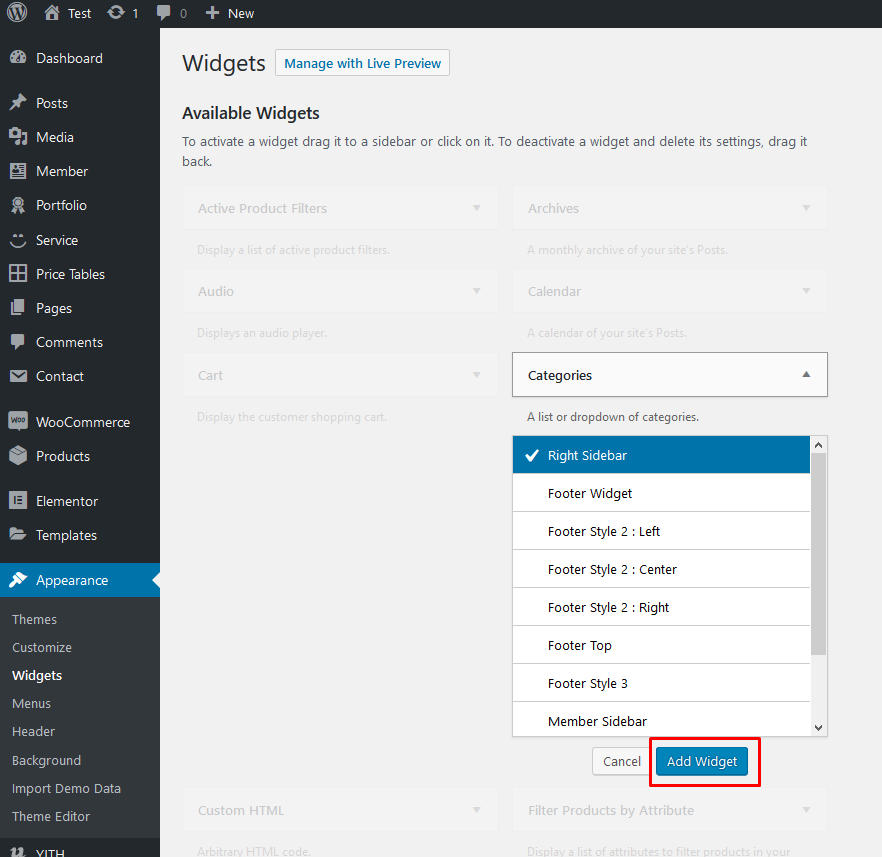
How to Edit Widget
Hit Appearance > Widgets. Choose a widget you want to edit.
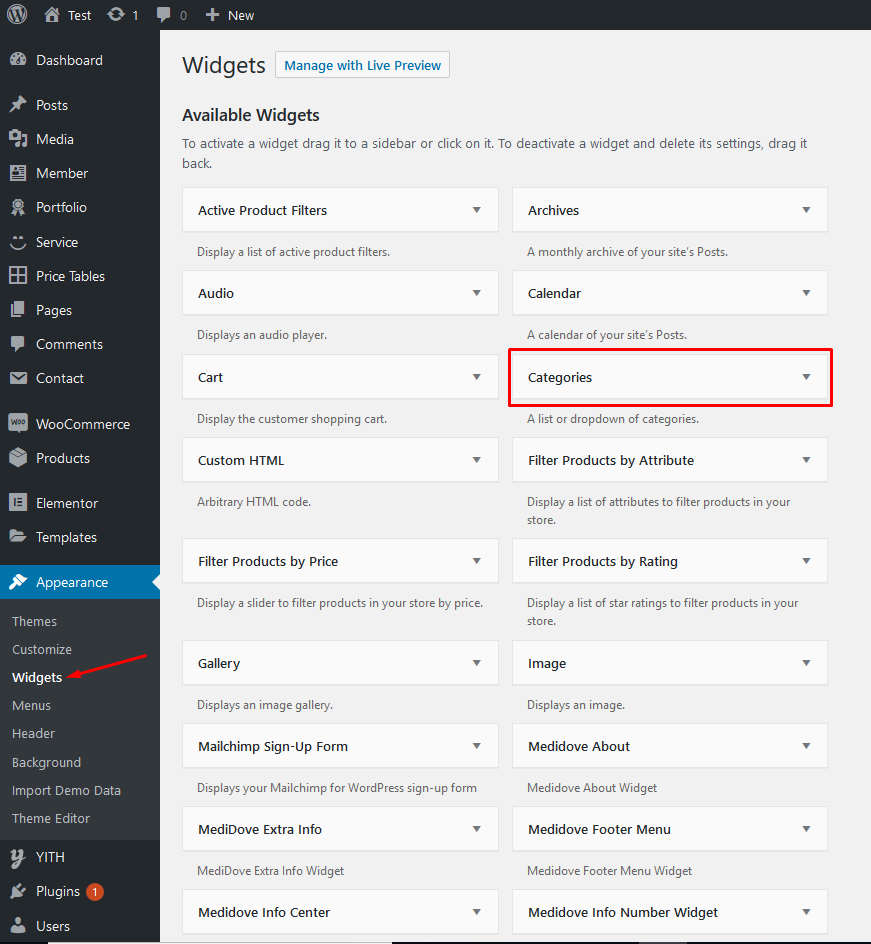
Then choose its area as you wish and hit Add Widget.
Then go to the right where you will notice a just-added widget. In this case, Search on Footer|#2. Type information and hit Save.
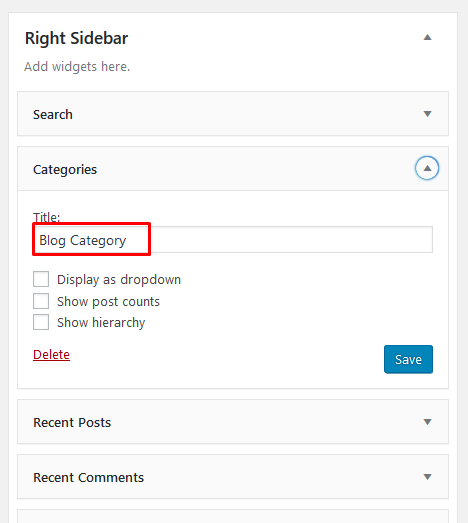
Finally Widget setup done. See your site now
Elementor Hero Widget
Start Edit Hero Section With Elementor Page Builder
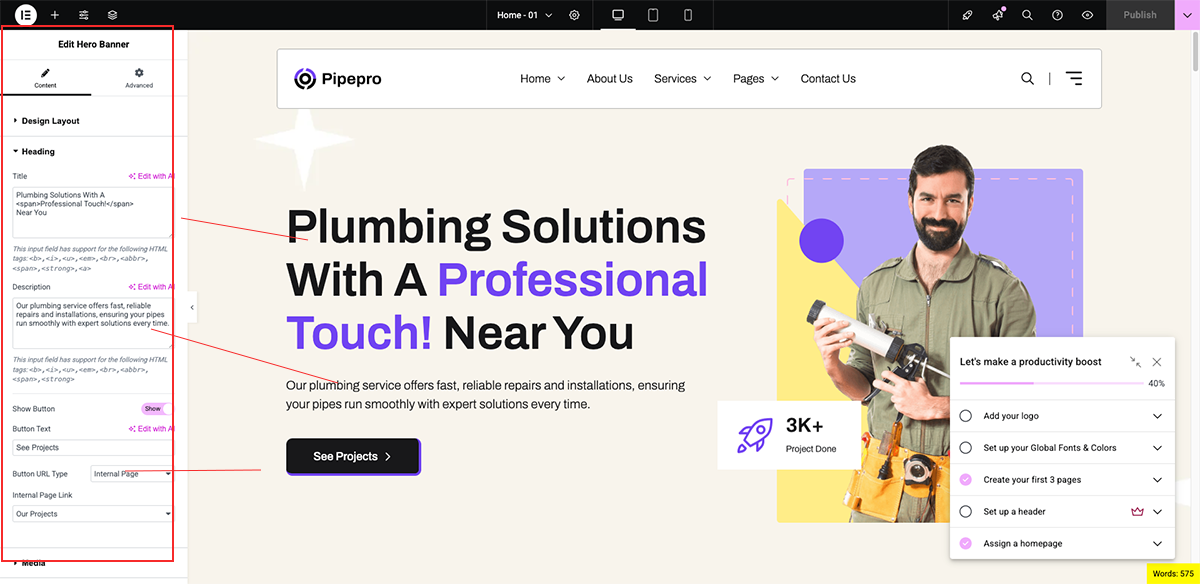
Elementor About Widget
Start Edit About Section With Elementor Page Builder
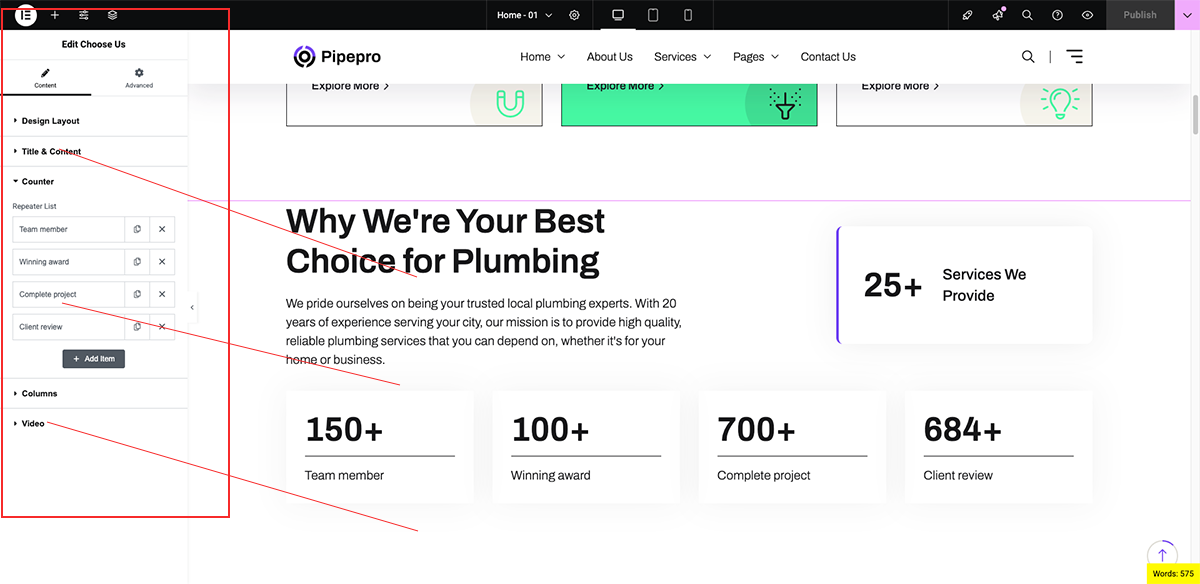
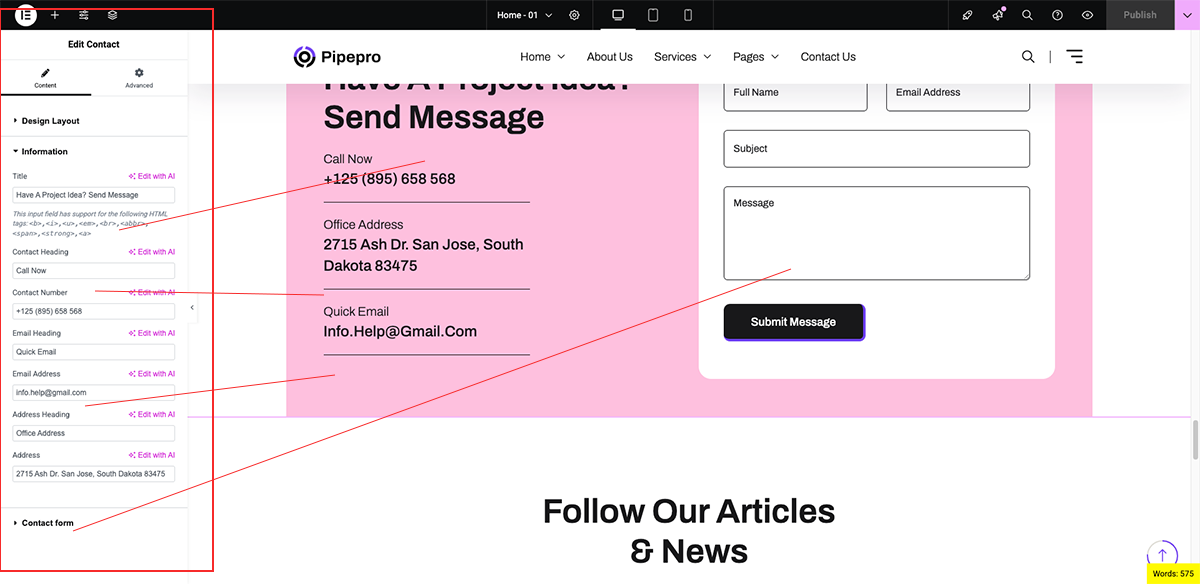
Elementor CTA Widget
Edit CTA With Elementor
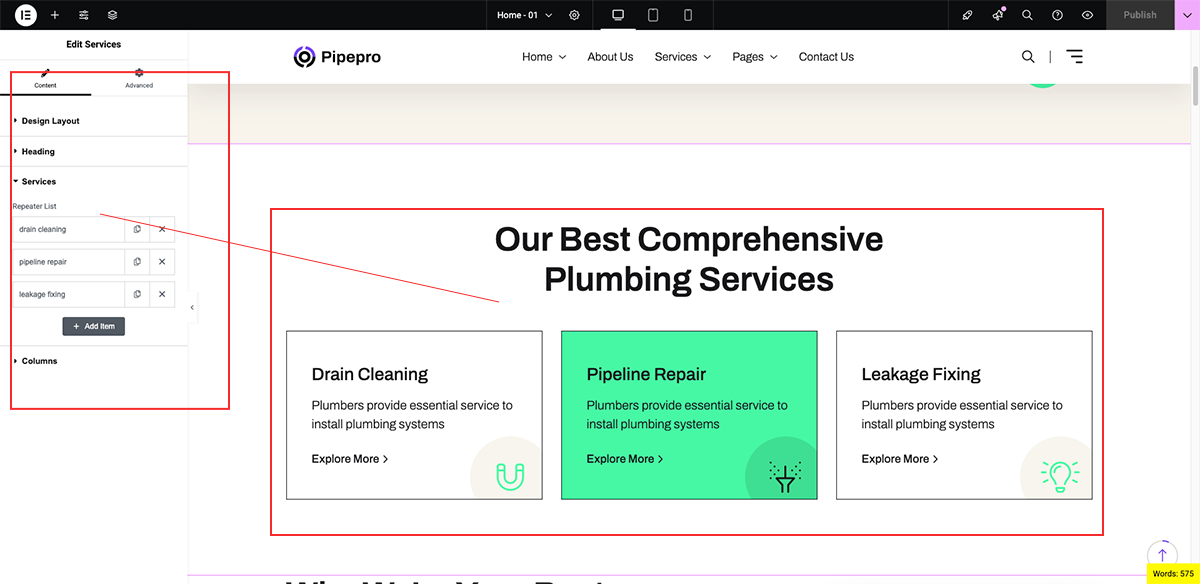
Elementor Services Widget
Edit Services With Elementor
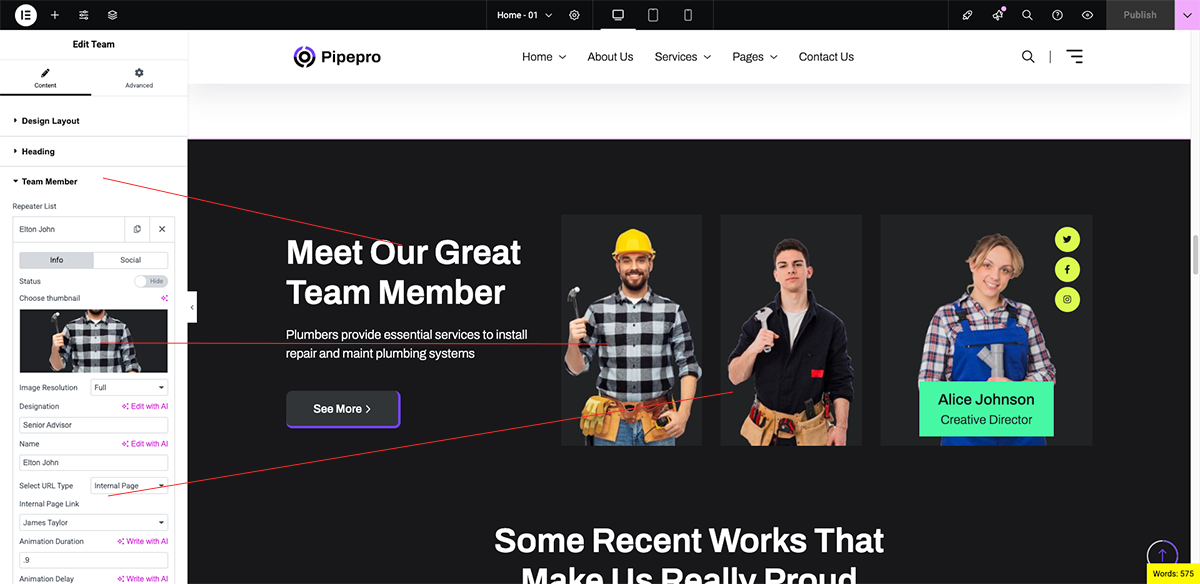
Elementor Team Widget
Team Edit With Elementor
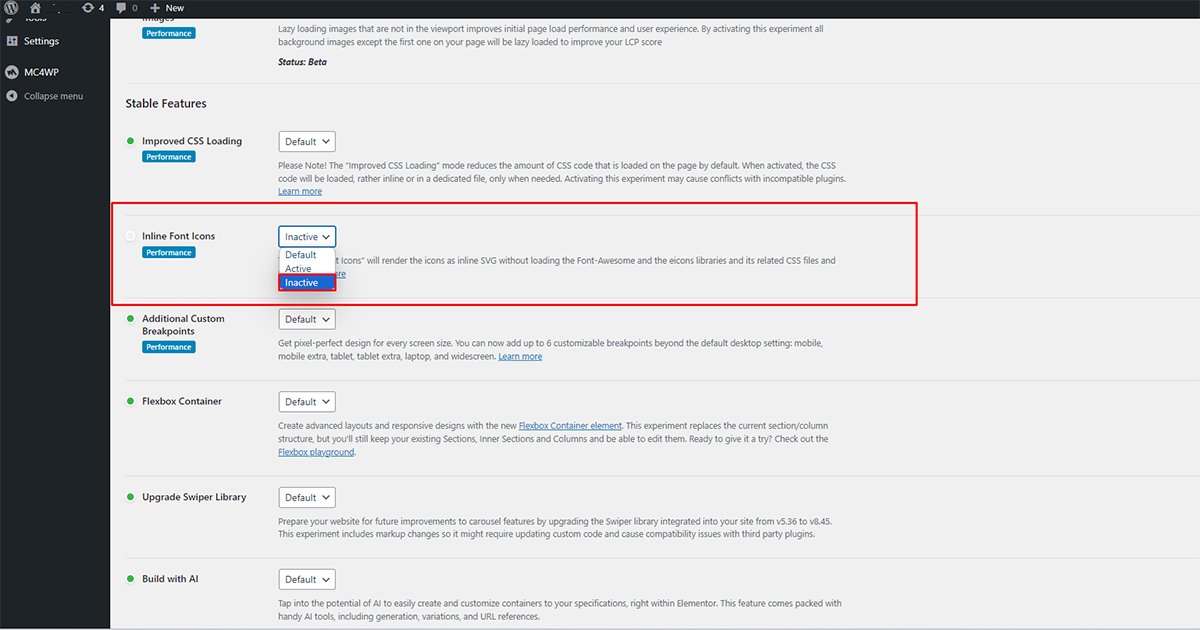
Elementor icon Problem
To solve Elemenor Icon SVG Issue Go to Dashboard > Elementor > Settings > Features > Inline Font Icons and make it inactive
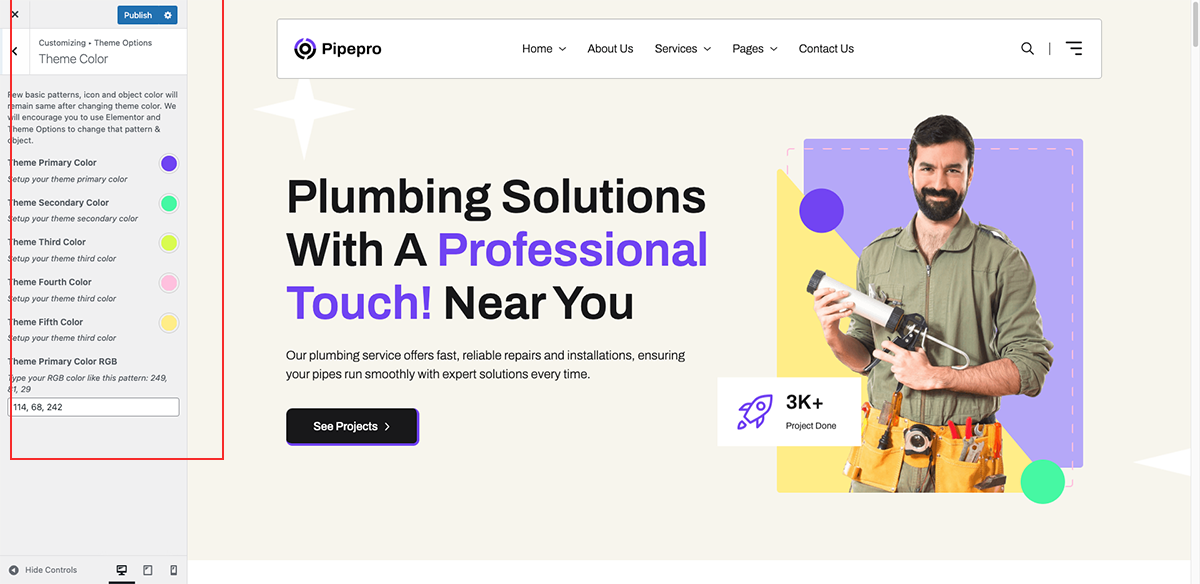
Color Version
Go to Appearance > Customize > Theme Options > Theme Color
Few basic pattern, icon and object color will remain same after changing theme color. We will encourage you to use Elementor and Theme Options to change that pattern & object.
Thank you for use this theme.
Once again, thank you so much for purchasing this theme. As we said at the beginning, We'd be glad to help you if you have any questions relating to this theme. No guarantees, but We'll do our best to assist. If you have a more general question relating to the themes on ThemeForest, you might consider visiting the forums and asking your question in the "Item Discussion" section.